 PVersion
Unreal Engine
Using PVersion with Unreal projects: the Unreal plugin, getting latest and submitting from inside the editor, locks, the Unreal version and the folders that are never sent.
PVersion works with Unreal projects in two parts: the desktop app downloads the project, opens Unreal and submits; the free Unreal plugin brings the same work into Unreal Editor. The plugin talks to the app on the same computer.
Requirements, setup steps and common questions are also on the Unreal plugin page. The plugin is for Unreal Engine 5.6 and later.
Opening the project
In the app, click Update and open: what the team submitted is downloaded, then the project opens in Unreal, with the Unreal version the .uproject file asks for. Unreal support and the plugin are Windows-only for now; if you use Unreal on a Mac, write to [email protected] and we'll build it on request.
- On the right of the app's bottom bar you see the Unreal version this computer uses for the project (for example
Unreal 5.6.1). If that version is not on the computer, it says "not found on this computer". - If someone on the team works with a newer Unreal version, a warning appears at the top of the app: while the versions differ, some assets may not open. Use the same Unreal version as a team.
When you first set up the project, the app also writes the setting Unreal needs to connect to the server. If Unreal does not connect, or says "read-only" when you save: close Unreal, open Help in the app and describe the problem; the page that opens has a Write Unreal connection button that writes the setting again. Then open Unreal with Update and open. For other fixes, see Unreal and tools problems.
Installing the plugin
- Close Unreal.
- In the app, open Settings → Unreal.
- Click Install the Unreal plugin.
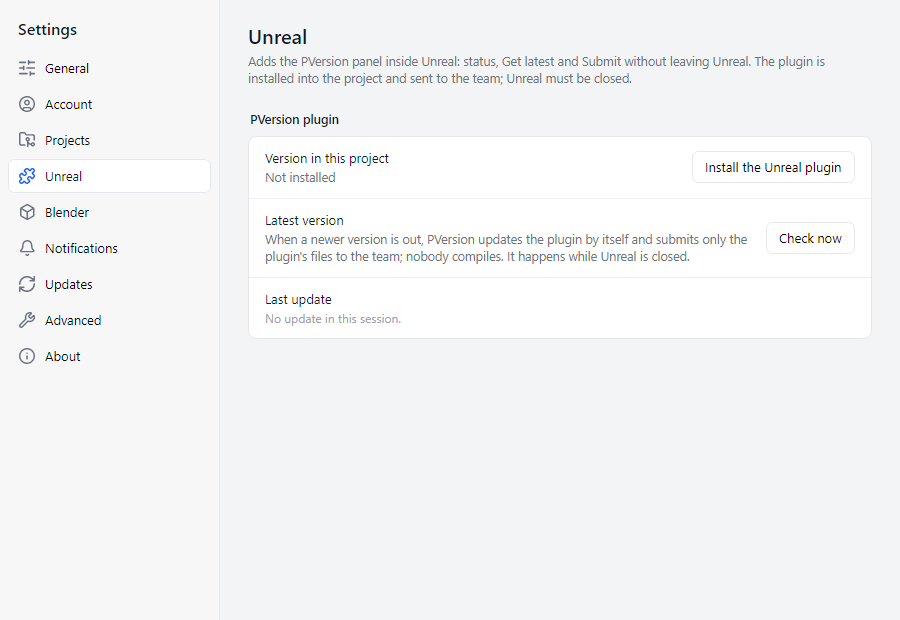
The plugin is installed in the project's Plugins folder and submitted to the team; everyone gets it the next time they get latest, and nobody has to build it.
The same section shows Version in this project and Latest version side by side. When a new plugin version comes out, the app updates the plugin itself while Unreal is closed and submits only the plugin's files to the team. To check right away, click Check now.
Working inside the editor
The PVersion button on the toolbar shows the project's state with a coloured dot: green when up to date, yellow when work is waiting, red when something needs your attention. The menu next to it opens Get latest, Submit… and Check the project. The PVersion panel has three pages: Changes, Team and Activity.
Get latest first looks at what is coming. If any of the incoming assets has unsaved changes, it asks: Save and continue, Discard changes and continue or Cancel. Changed assets are reloaded in place; if the open map or part of it changed, the map is closed and opened again. If project, plugin or config files changed, you are told to restart Unreal. If some files cannot be written while Unreal is open, the panel lists them by name; close Unreal and click Update and open in the app. More in Getting latest.
Submit… lists your changes. Tick the ones you want to submit, write briefly what changed and submit; the grey ones cannot go right now. If assets have unsaved changes, Save all and submit appears: only the saved state goes into a submit. Progress shows live while it submits. More in Submitting.
For an asset's older versions, right-click it in the Content Browser and choose PVersion: History. Go back to this version adds that version to your changes; Submit takes it to the team.
Locks
.uasset and .umap files cannot be merged, so they open locked: only one person at a time can change and submit an asset. When you open or start changing an asset someone else holds, Unreal shows a warning. Your work is never blocked, but you cannot submit until they do; the app's Team page shows who holds what. More in Locks.
One File Per Actor
In World Partition maps Unreal saves each actor in a file of its own (the __ExternalActors__ folder); one save can make hundreds of new files. Submits of hundreds of files go through without getting stuck. The app's My changes page then shows a button such as Submit new files (240) at the top, which submits all the new files together.
Folders that are never sent
Folders Unreal rebuilds on every computer do not go to the server: Saved/, Intermediate/, DerivedDataCache/ and Binaries/. Plugins' Binaries/ folders do go, so a project that uses a plugin from Fab also opens on a computer without Visual Studio. Everyone's personal Content/Developers/ folder is not sent either.
File names
The server accepts only plain letters, digits, spaces, dots, dashes and underscores in names; files with letters such as ü or ş don't go until they are fixed. Unreal assets have to be renamed inside Unreal so the assets that use them follow the new name. Fix with suggested names on the app's File names page fixes them all at once while Unreal is closed; Fix the names… in the plugin does the same with Unreal open. More in File names.
Ask the assistant on the site or write to [email protected].