 PVersion
Getting the latest
Download what your team has submitted, open the project, and stop a long download if you need to.
What your teammates submit to the server doesn't reach your computer until you get it. Getting the latest brings the project on your computer up to the server's current state. The first thing you do each day is one button: Update and open.
Update and open
Update and open downloads what the team has submitted, then opens the project. Only the files that changed come down, so after the first download, updates are quick.
- If Unreal or Unity is open, save and close it. PVersion doesn't download while the editor is open; the status line tells you to close it first. If Photoshop, Premiere Pro or After Effects is open and the team has submitted one of that program's files, PVersion stops first and warns you. These programs keep an open document in memory: if the file changes underneath, the next save writes over the team's newer version. Save the document and close the program. If the program is open for other work, click Update and open once more and PVersion gets the latest this time.
- Click Update and open in the toolbar at the top.
- Follow the progress in the status bar at the bottom: number of files, size downloaded, speed and time left.
- When the download finishes, the project opens: an Unreal project in Unreal, a Unity project in the Unity version it was made with. For other projects (a video project, for example) the project folder opens.
If the download can't finish for some reason (the connection dropped, say), the project still opens, but with the version already on your computer, and the status line says so. Once the connection is back, click Update and open again.
Refresh (F5)
Refresh doesn't download anything. It reads the changes on your computer and the server again: My changes, History and Team are reloaded, and if you've been given a new project in the console, it shows up in the project list. The shortcut is F5.
Most of the time you don't need it, because PVersion keeps looking on its own:
- When a file is saved in your project folder, My changes updates within a few seconds.
- The server side (the team's submissions, who has which file open) is refreshed every two minutes.
Click Refresh when you want to see the current state right away.
What happens to your unsubmitted work?
Getting the latest never overwrites work you haven't submitted yet.
- Files in My changes stay as they are. If the team submitted a newer version of the same file, the row shows a warning and you choose which one stays: The server has a newer version.
- If you changed a file that wasn't on your list (the editor made it writable and saved it on its own), PVersion treats it as your work, doesn't overwrite it, and adds it to My changes.
- If your computer has its own copy of a file that's also on the server but differs from it (a plugin installed from Fab, for example), it isn't overwritten either; you choose which one to keep in the Also on the server list.
- If a file can't be written (the editor or a program such as Premiere Pro was holding it, or another copy was in the way), a yellow notice at the top names the files; the other files still come down. Close the program holding the file and click Update and open again; the notice's Check project button helps too.
Stopping a download
The first download of a large project can take a long time. Stop, next to the progress bar in the status bar, cuts it short.
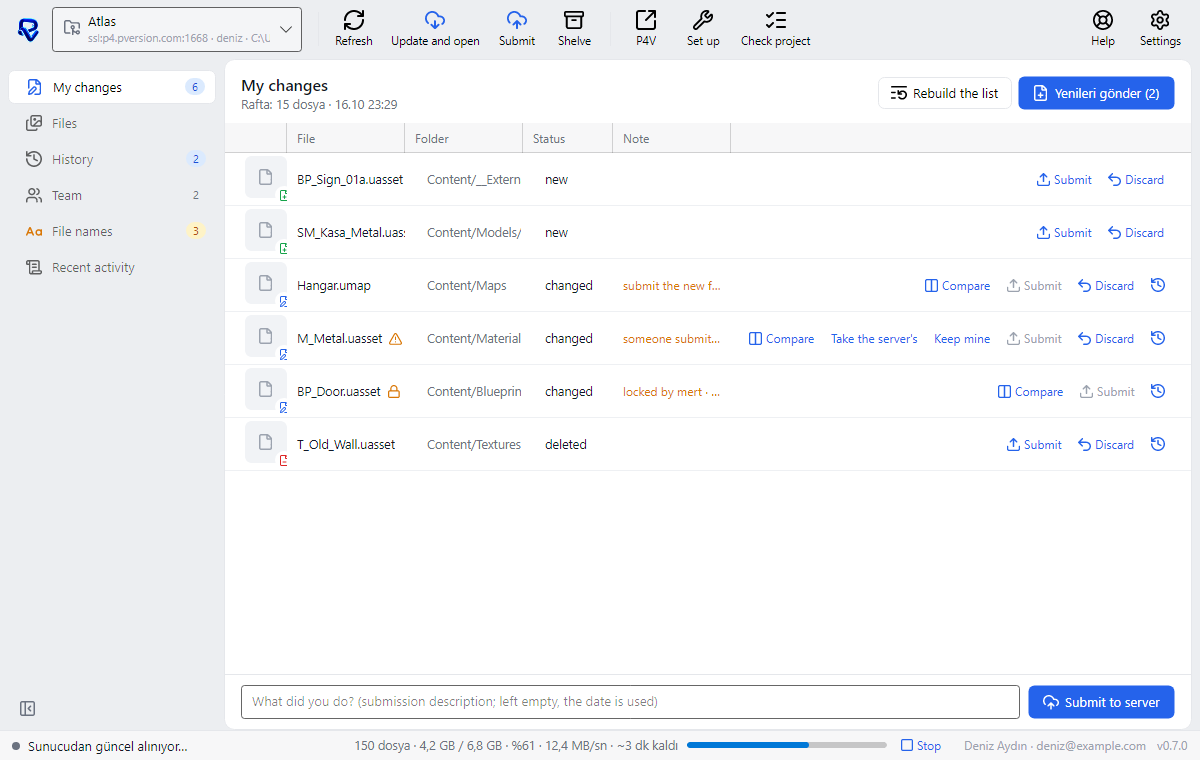
- When you stop, the project doesn't open.
- The next Update and open carries on where it left off; half-written files are fetched again.
- If the bar doesn't move for a while, "waiting for the server" appears next to it. The window hasn't frozen; it's waiting for the server to answer.
Downloading everything again
If the copy on your computer is damaged, you can have every file written again from the server. This is an advanced step, and it lives in the result box of Check project, not in the toolbar.
- Close Unreal or Unity.
- Click Check project; when the check is done, click Advanced: Download everything again… in the box that appears.
- PVersion first looks for files you haven't submitted and lists them by name. Your changes in those files are kept; everything else is downloaded again from the server. Files that look damaged (read-only but different from the server's) are downloaded again too.
- Start with Yes, download again, or click Cancel.
This download can also be stopped with Stop. Files found to be changed are kept and added to My changes.
Ask the assistant on the site or write to [email protected].