 PVersion
Problems sending and getting files
What to do when a submit does not go through, the team cannot see your changes, file names or locks hold a submit back, or getting the latest gets stuck.
This page covers what to do when files do not go to the server or do not come from it to your computer. The app tells you about most of these itself: in the yellow notices at the top of the window, in the Note column of the rows in My changes, and in the status line at the bottom. When the status line is red, click Ask about this; the Help window shows the matching fix and its button. For sending and getting as such: Submitting, Getting the latest.
I submitted, but the team cannot see my changes
Why it happens: A change you make on your computer stays only with you until you submit it. The team gets it only after that, with Update and open on their own computers.
- Click Submit to server at the bottom of My changes (or Submit in the toolbar). The status line should say
Connected · nothing left to submit. - Your teammate clicks Update and open on their computer. Their status line says there are new changes on the server.
- If you submit from Unreal: Revision Control → View Changes → Submit.
It says "No changes to submit"
Why it happens: The files in the folder are the same as on the server. There may be unsaved work in Unreal, or the change is in a folder that is never submitted (Saved, Intermediate).
- Do Save All in Unreal and submit again.
- Make sure the file is under
Content.SavedandIntermediateare not submitted, and Unreal's personal folderContent/Developersnever goes to the server either.
If rows are in the list but the status line says No file can be submitted right now; see the reasons in the rows., read the Note column of each row; the reasons are in the sections below.
Files are held back because of their names
Why it happens: The server accepts only plain letters, digits, spaces, dots, hyphens and underscores in file names. Files with Turkish letters (ç, ğ, ı, ö, ş, ü), Cyrillic letters or an apostrophe are not submitted, because the game engine and the server write these names differently. Your teammates cannot get these files, and scenes that use them look broken for them.
The app says so at the top of the window; the files wait in My changes under Cannot be submitted.
- Click Fix names in the notice; the File names page opens.
- Close Unreal (or Unity) and click Fix with suggested names. Unreal assets are renamed by Unreal itself, so the assets that use them follow the new name.
- The changes appear in My changes; submit them with Submit to server.
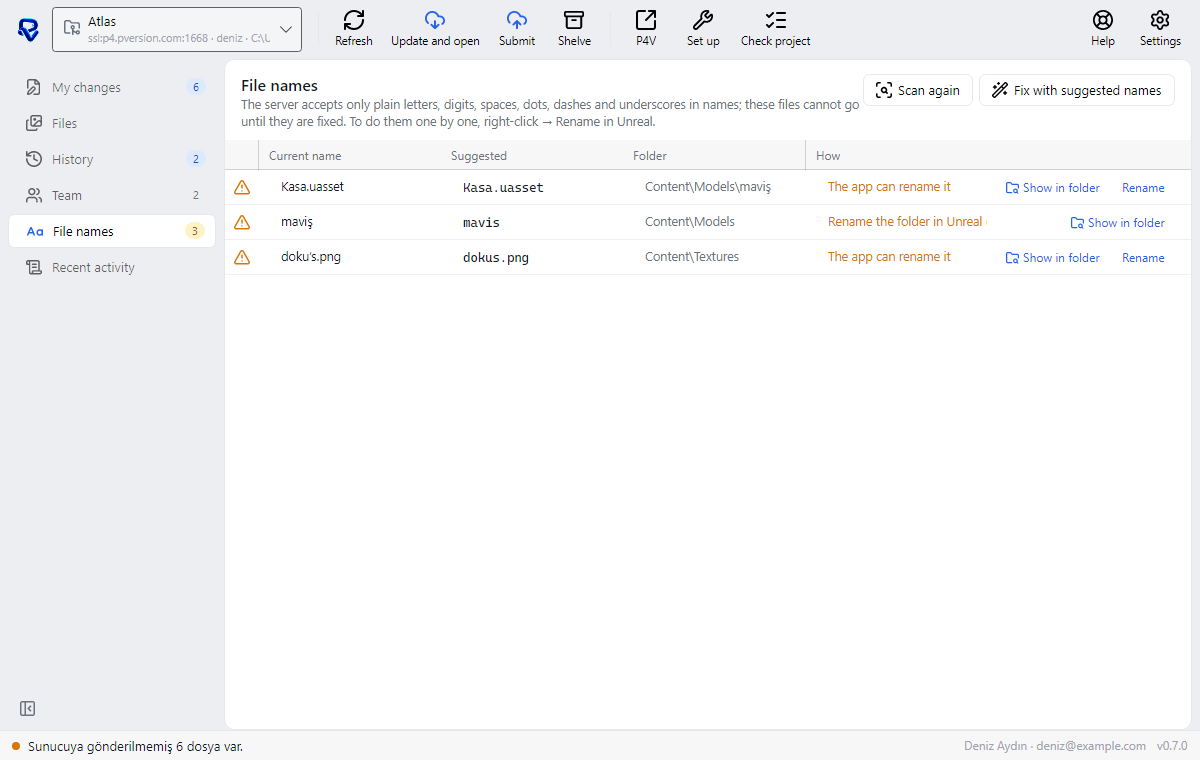
If you click Submit before the names are fixed, the app asks: Fix the names first or Submit incomplete. If you submit incomplete, those files stay missing for the team. Later hides the notice for this session only. Tip: giving assets plain English names from the start is the safest. More: File names.
The "Also on the server" list
Why it happens: The folder holds your own copy of a file this computer never got from the server, and it differs from the server's (for example, you installed a plugin on this computer separately). Such files are not submitted as new; you choose which one stays. The status line says … files are also on the server and your copy differs; choose one in My changes.
- In My changes, go to the Also on the server list (See the list in the notice takes you there too).
- Choose one for each file: Take the server's (your copy goes to PVersion's backup folder and the server's comes in its place) or Submit mine (yours joins your changes; once submitted it goes over the server's, and the old one stays in the history).
- For a plugin's built files (
Plugins/…/Binaries), Take the server's is recommended so the team works with the same version. Unreal must be closed for this.
The file is open by someone else
Why it happens: Some files (such as Unreal assets) can be open by only one person at a time, and this one is with another team member. The row shows a lock and a note that it passes to you once they submit; your save stays on your computer.
- See who has it open on the app's Team page, or in the console on the project's Open files tab.
- Wait until they submit or let it go; Notify tells them you are waiting. If it is urgent, talk to them.
- If they cannot be reached, a studio admin can release the file from the console. Open console opens it.
More: Locks.
Two people changed the same file
Why it happens: While you were working, someone else submitted a newer version of the same file; the row's note says someone submitted a newer version; pick one. Unreal assets cannot be merged, so one of the two versions is chosen.
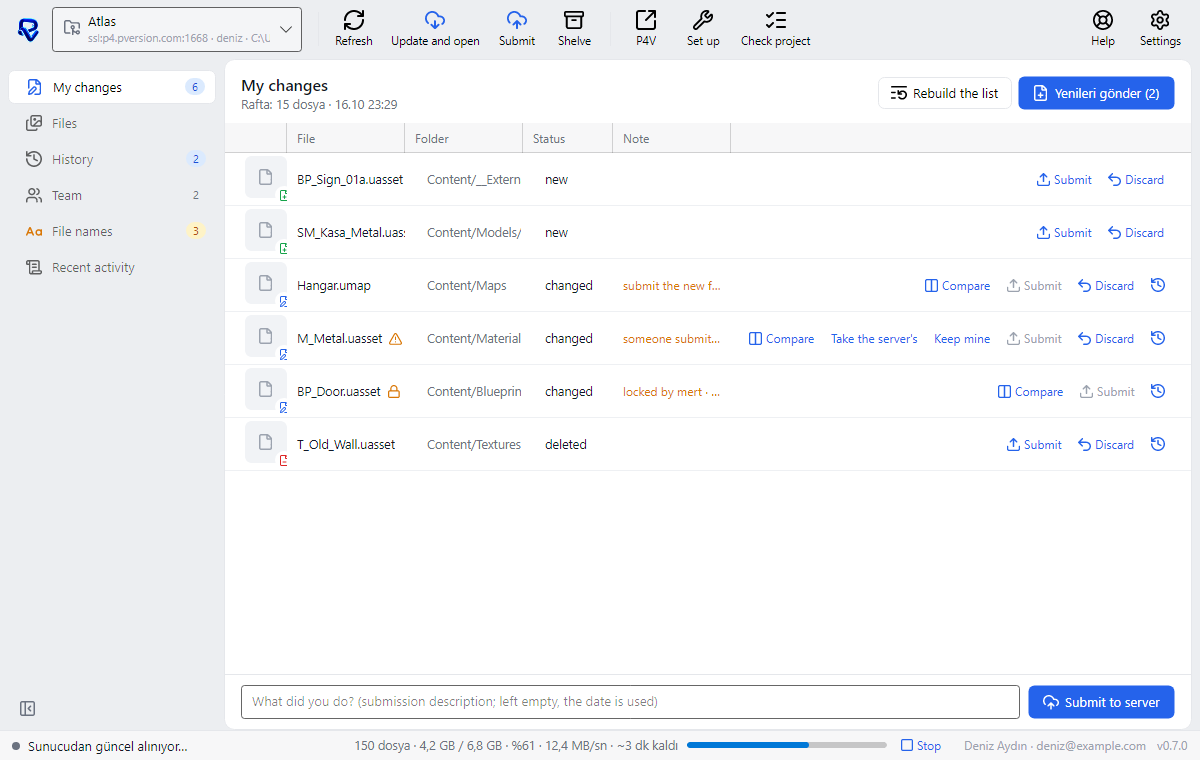
- For files with a picture, Compare on the row shows both versions side by side.
- Choose one: Take the server's (the team's version comes in; yours is copied to the PVersion backup folder) or Keep mine (your version goes; the team's stays in the history and can be brought back).
- If you are not sure, talk to the person who submitted the file last, then submit.
More: A newer version on the server.
A submit stopped halfway or got stuck
Why it happens: A submit was cut off and the files were left waiting in a list on the server. Submitting again is usually enough. The status line says Could not submit: … or Submission got stuck: ….
- Click Revert unchanged files, then Submit to server.
- If it still fails, read the reason in the message: a naming rule, a locked file or a conflict (see the sections above).
- If old entries are stuck in the list after a rename in Unreal, click Rebuild the list in My changes. It does not touch your files; it empties the submit list and gathers it again from the folder.
A submit was stopped by the security scan
Why it happens: The server scans every submit; a file looked suspicious or could not be scanned. Most of the time it is a plugin or an executable that came from outside the project.
- The message names the file that was stopped; check where that file came from.
- If it does not belong to the project, remove it from the folder and submit again.
- If you are sure it is needed, tell your studio admin or click Open a support case.
Storage is full
Why it happens: The storage or the user limit in the studio's plan is used up, so the server refuses the submit.
- Tell your studio admin; storage or users can be added on the console's Subscription page (Plans).
- Make sure you are not submitting large temporary folders (
Saved,Intermediate,DerivedDataCache); they are already on the list of folders that are never submitted.
Some files could not be written when getting the latest
Why it happens: While getting the latest, some files could not be written to your computer: the file was open (usually in Unreal, or in a program such as Premiere Pro) or another copy was in its place. The notice at the top of the window says how many and which files; the other files still come down.
- Close the program holding the file (Unreal, Premiere Pro or whatever else you use).
- Click Update and open again.
- If the notice comes back, click Check project in it: it compares the whole project with the server and downloads missing files again; nothing is submitted by itself (Checking the project).
If the notice says some files have your own changes, choose Take the server's or Keep mine for each in My changes. If getting the latest fails altogether, the app opens the project with the older version: Could not update; opening with the older version.
Downloading or submitting is very slow
Why it happens: The first download brings the whole project, which takes long for large projects. Later updates only bring what changed.
- If the progress bar is moving, wait and do not close the window.
- If the bar does not move for a long time, check your internet connection. You can stop with Stop; Update and open (or Set up during the first setup) continues where it left off. The Get latest button does the same.
The server could not deliver a file
Why it happens: The stored copy of a file is missing on the server side. It cannot be fixed from this computer; the studio admin or the support team needs to look at the backups.
- Click Open a support case. The case includes the last error and the recent activity by itself; you can also paste the full error text into your question, since it names the missing files.
- You can keep working in the meantime; the other files still download.
Going back to an older version of a file
Why it happens: The server keeps every version of every file. You can bring back the version you want; it arrives as your own change, so you can look at it in the editor before submitting.
- Open the file's history: the history icon on its row in My changes, or History in the panel on the right when you click the file on the Files page.
- Click Go back to this version on the version you want.
- Check it and click Submit to server.
Undoing a submit, bringing back a deleted file
Why it happens: The server keeps every submit. Undoing one applies to the whole team; the undo is recorded on the server as a new change.
- On the app's History page, pick the submit and click Undo this change. It can also be undone in the console on the project's Recent changes tab.
- Then click Update and open on your computer.
To bring back only a deleted file, pick the submit that deleted it on the History page (files deleted from the app have the description Deleted: file name) and click Undo this file on its row. If you may not undo someone else's submit, use the history button on the same row: click Go back to this version on the version before the delete, then Submit to server.
More: History and undo.
Still not solved
Click Help → Open a support case; the case includes the app's state, the last error and the recent activity by itself. More: Support and the assistant.
Ask the assistant on the site or write to [email protected].