 PVersion
History and undo
See the team's submissions on a timeline, go back to an older version of a file, and undo a submission.
The server keeps every submission and every version of every file. When something breaks, there are two ways back: bring an older version of a file to your own computer, or undo a submission for the whole team. Both start from History.
The History page
History in the left column shows the team's latest submissions as a timeline: number, description, who submitted it, and the day. The number next to it is how many submissions you haven't got yet.
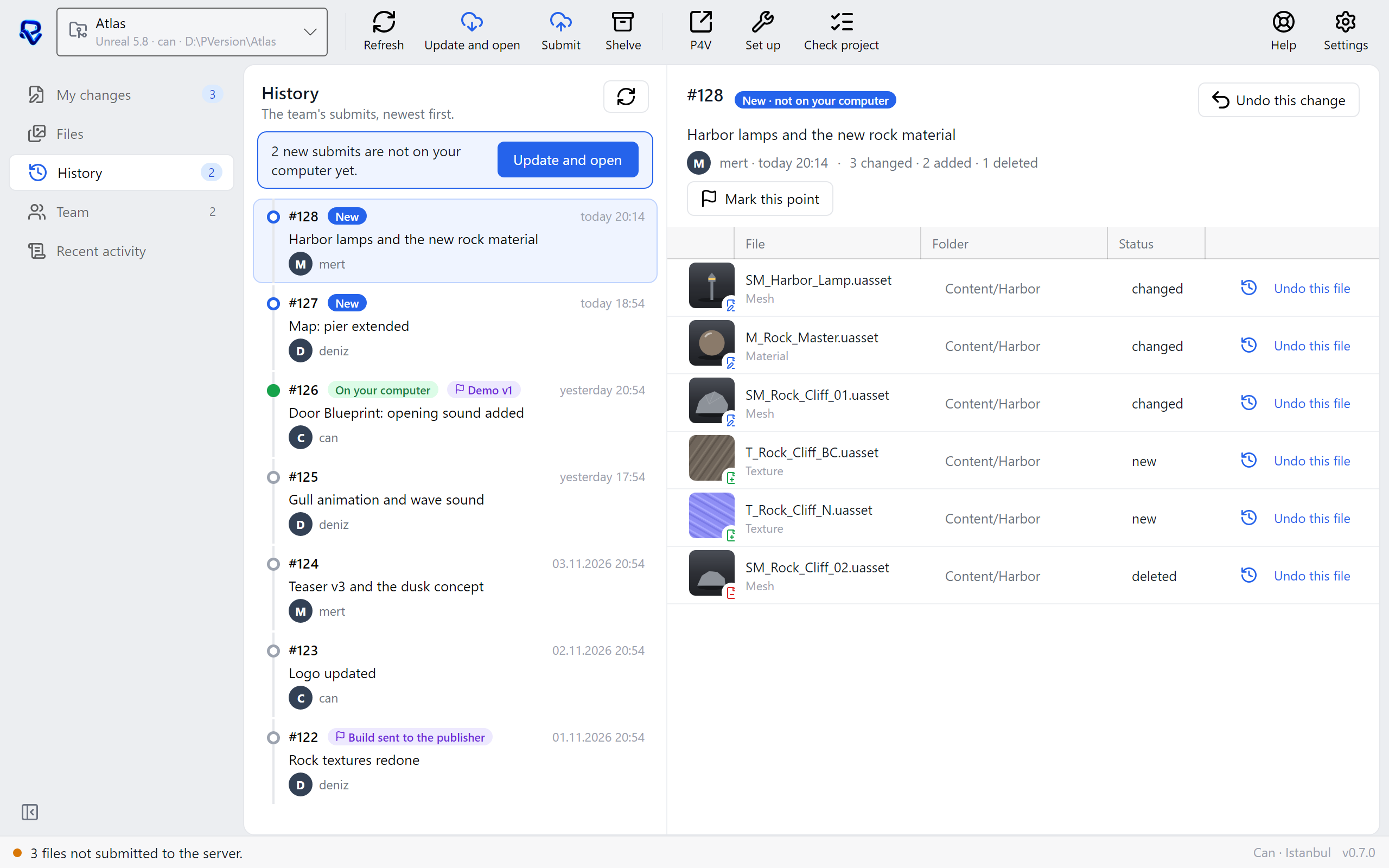
- New: this submission isn't on your computer. A line at the top of the page says so, with an Update and open button.
- On your computer: the submission your copy is at.
- Flag: a version marker has been put on the submission; see Version markers.
Click a submission to see, on the right, its description, who submitted it, the date, and the files it changed, with thumbnails. Each file row has a button that opens the file's history, and Undo this file. The refresh button at the top reloads the list right away; PVersion also does this on its own every two minutes.
A file's history
You see every version of a file in the file history window. Ways to open it:
- the history button at the end of a row in My changes (not on new files, which have no versions yet),
- on the History page, the history button on a file row of the selected submission,
- on the Files page, the History button in the panel on the right once you select a file.
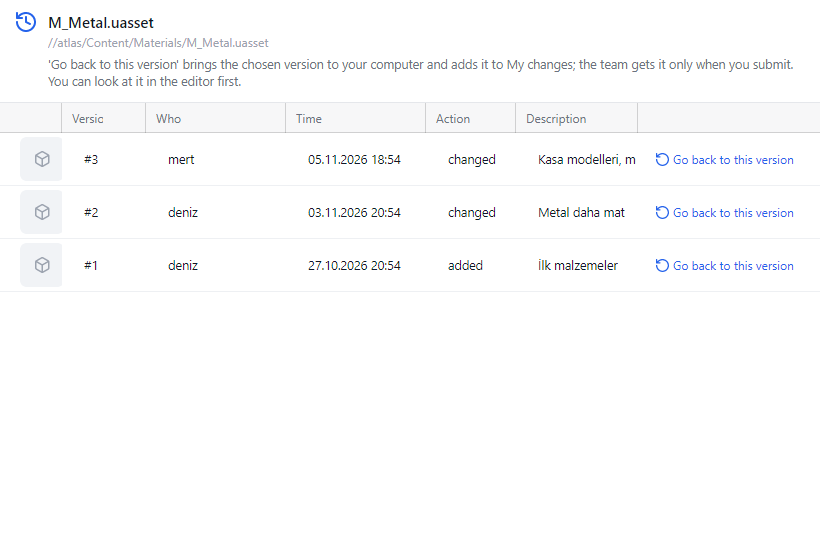
For each version the window shows Version, Who, Time, Action and Description.
Go back to this version
Go back to this version brings the version you choose to your computer and adds it to My changes. The team gets it only when you submit it; until then it's yours alone.
- Close Unreal or Unity; an older version isn't brought back while the editor is open.
- Open the file's history and click Go back to this version on the version you want.
- The file appears in My changes. You can open it in the editor and look at it before submitting.
- If it's right, write a description and click Submit to server. If you change your mind, click Discard on the row.
The file is taken for you while you do this; if it's a locked file, the team sees that you have it. If you go back to an older version of a deleted file, it comes back to My changes as a new file.
Undo this change
To undo a whole submission, select it on the History page and click Undo this change at the top right. PVersion asks first; confirm with Yes, undo or click Cancel.
- Every file the submission touched goes back to its previous version.
- The undo is recorded on the server as a new submission and applies to the whole team straight away. The team gets it with their next Update and open.
- Files someone else has open are skipped and listed by name on Recent activity; a locked file is never taken from anyone.
- If Unreal or Unity is closed, the previous versions are downloaded to your computer right away. If it's open, close it and click Update and open.
You can undo your own submissions. A studio admin can undo anyone's submission; the same action is in the console too.
Undo this file
To undo just one file of a submission, select the submission and click Undo this file on that file's row. The question and confirmation are the same. This also applies to the whole team, and it can't be done if someone else has the file open.
Which one to use
| You want to | Use | Who it affects |
|---|---|---|
| Look at an older version of a file, and maybe use it | Go back to this version | Only you, until you submit |
| Reverse a bad submission entirely | Undo this change | The whole team, right away |
| Reverse one file of a submission | Undo this file | The whole team, right away |
Ask the assistant on the site or write to [email protected].