 PVersion
Checking the project
Compare the whole project with the server to find missing files and changes that slipped through; the Recent activity page and log files.
Sometimes the project on your computer quietly drifts away from the server: a file gets deleted, the editor changes a file without adding it to the list, a download stops halfway. Check project compares the whole project with the server and fixes what can be fixed safely. Nothing is submitted by itself.
When to use it
- A file is missing on your computer or looks damaged.
- A teammate says "I submitted it", but something is missing.
- After the editor crashed or the computer shut down unexpectedly.
- A "The last update could not write … files to this computer" notice appeared at the top (it has a Check project button too).
- After a long break, to make sure everything is in place.
How to run it
- Close Unreal or Unity. The check writes files; if the editor is open, it won't start and tells you to close it.
- Click Check project in the toolbar.
- The steps and progress show in the status bar. On a large project it can take a few minutes.
- When it's done, a result box opens at the top of the window.
What the check does
In order:
- Gets the latest. First it downloads what the team has submitted, as Update and open does (the project isn't opened).
- Downloads missing files again. Files that are on the server but not on your disk are written again from the server. The check never deletes a file.
- Finds unnoticed changes. Files changed without being added to the list go into My changes; their contents aren't touched. Files someone else has open can't be added, and the result names them.
- Fixes unchanged files. Files the editor made writable but never changed are made read-only again.
- Finds new files. Files the server has never had go into My changes as new files. Files whose names break the rule aren't added; they show on the File names page. Copies that are also on the server but differ from yours go to the Also on the server list; see The server has a newer version.
- Points out what's stuck. It names files you've had open for more than 7 days without submitting, and removes old copies left on the shelf.
The result box
When the check finishes, a summary like this appears at the top of the window: "Check finished: 3 files downloaded again, 2 changes added to the list, 1 new files waiting to be submitted, 0 file names must be fixed." Below it come any details (files made read-only, files that couldn't be added because someone else has them open, files open for a long time).
- The My changes and File names buttons take you to the list in question (they only appear when there's something there).
- OK closes the box.
- Advanced: Download everything again… writes every file again from the server; it's the last resort for a damaged copy. See Getting the latest.
When nothing is found, the box is a single line: "Check finished: the project matches the server, nothing to do."
The Recent activity page
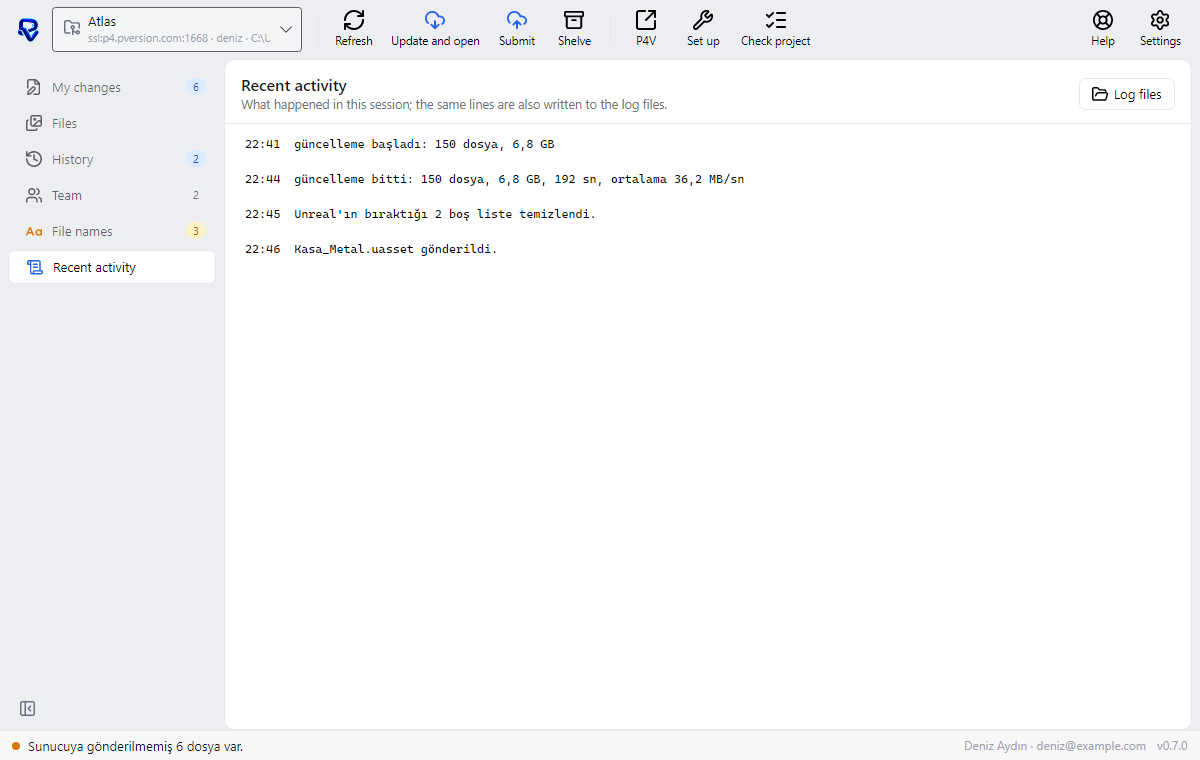
Recent activity lists what PVersion has done in this session, with times: downloads, submissions, shelving, check results, warnings. When you wonder why something didn't happen, this is the first place to look.
When an error shows in the status bar, Ask about this next to it opens the Help window with the error text.
Log files
The lines on Recent activity are also written to log files. The Log files button on the page opens their folder (Settings → Advanced has a button for the same folder too).
- Each day's log is a separate file, like
pversion-2026-10-31.log. - Files are kept for two weeks, then deleted automatically.
- On Windows the folder is
%LOCALAPPDATA%\PVersion\logs.
When you report a problem to support, attaching that day's file speeds things up. Open a support case in the app with Help → Open a support case; see Support and the assistant.
Ask the assistant on the site or write to [email protected].