 PVersion
AI tags
PVersion tags what is inside your files, so you can find them across the project by their content instead of their name.
PVersion looks at the pictures, Unreal assets, videos, .blend files and PDFs you submit, and describes what it sees in a sentence and a set of tags. That lets you find a file without knowing its name, by what is in it: a search for harbour at night also finds files whose names say nothing of the kind.
There is nothing to install or switch on; it works by itself for studios with an active plan.
What gets looked at
Files the app can make a picture of are tagged:
- Images (such as
.png,.jpg,.psd) - Unreal assets (
.uasset,.umap), through the preview Unreal saved for them - Videos, through one of their frames
- Blender files (
.blend) - PDF files, by their first page
In every file the AI looks for four kinds of things: objects, setting, colour and light, and style. These become the tags; on top of them it writes a short sentence about what it sees.
Seeing the tags
On the Files page, click a file. In the panel on the right, below the buttons, there is an AI section: the sentence first, the tags under it.
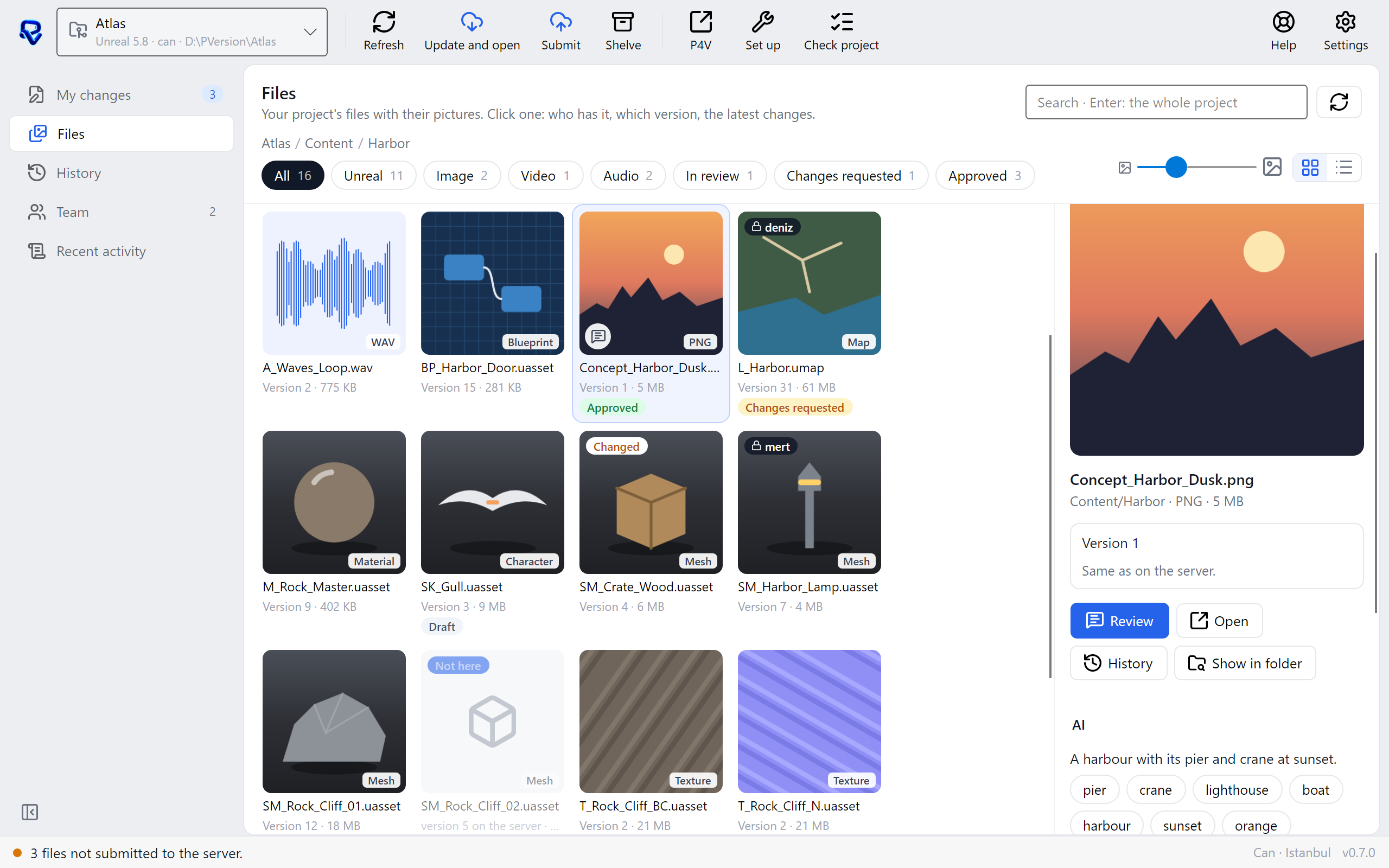
- Tags are kept in Turkish and in English. They show in the language the app is in.
- Clicking a tag searches the whole project for it.
- When a new version of the file is submitted, its tags are renewed by themselves. Until the new version has been looked at, the panel keeps the old tags and says "These tags are of an earlier version; the new one is queued."
- If a file has no AI section, it has not been looked at yet.
Searching the project
Type in the search box on the Files page and press Enter. The search covers the whole project, not just the open folder, and the results replace the folder.
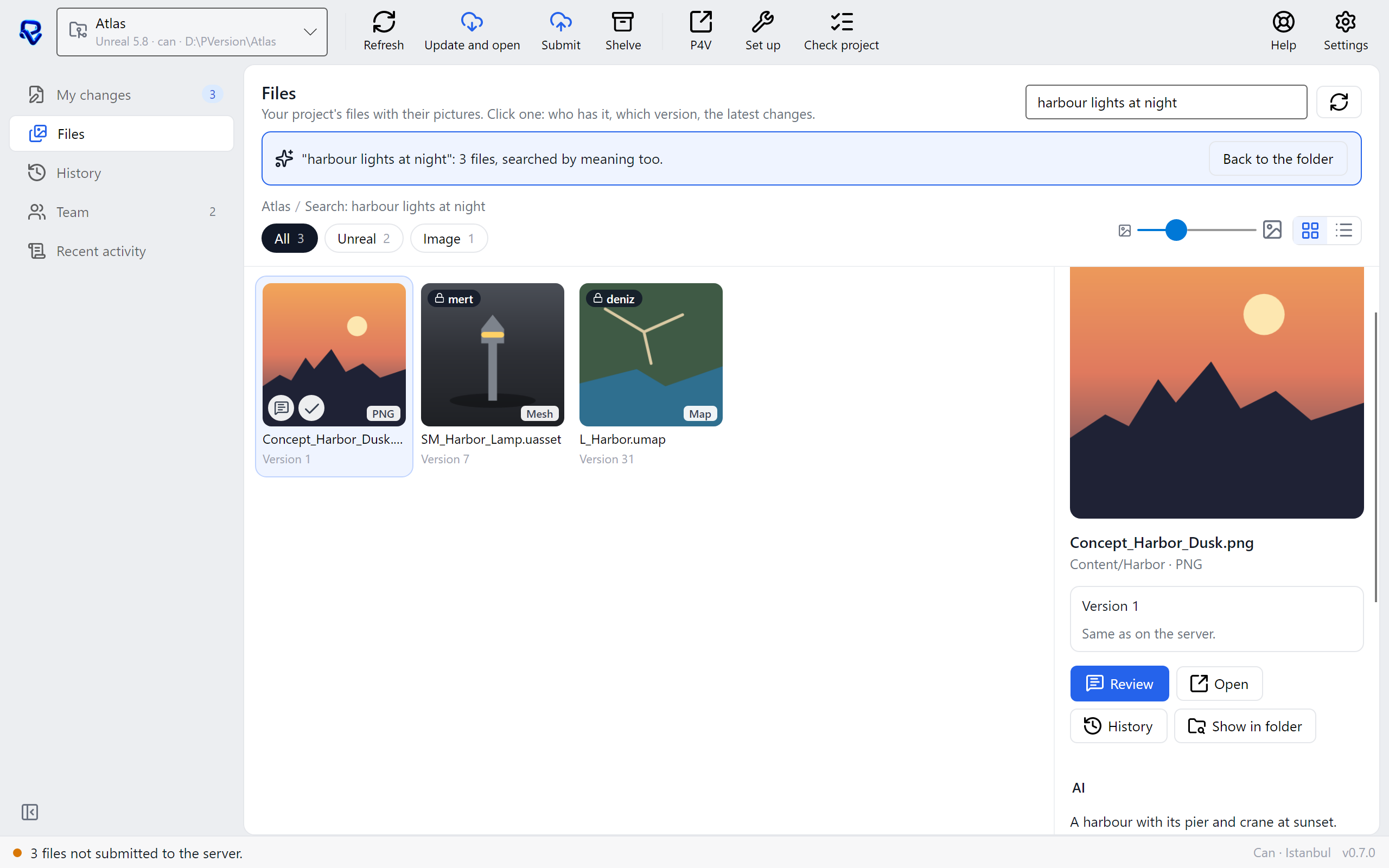
- The search looks at the file name and at the AI's tags and sentence; you can type in English or Turkish.
- It searches by meaning as well as by words:
harbour at nightalso finds files whose names don't contain those words but whose content is close to them. - The line at the top says how many files were found. When searching by meaning is not possible at that moment, the line says it searched by words only; the search still works.
- Type at least two characters.
- To go back, click Back to the folder or clear the search box.
A project search only finds files the AI has looked at. Typing without pressing Enter only filters the open folder (see The Files page).
Your files stay with you
- For each new version the app makes a small preview and sends it; the AI only looks at that preview. The file itself is not sent to the AI and never leaves your server.
- The tagging is done by PVersion's own AI machine, not by an outside AI service. Your files, previews and searches are not sent to any other AI service.
- Previews are sent in the background; you don't need to do anything.
Active plan
Tagging and project search work for studios with an active plan. Without one, the app sends no previews and files get no new tags in their AI section. For the plans, see Plans.
When tags don't arrive
Previews are tagged one after another, so when a lot of files are submitted at once it can take a while. Files the app cannot make a picture of are not tagged; for example an Unreal asset whose preview Unreal has not saved yet.
If a file's picture shows on the Files page but it gets no tags for a long time, write to us from the app with Help → Open a support case, and include the file's name and folder.
Ask the assistant on the site or write to [email protected].