 PVersion
The Files page
See every file in the project with its picture, find out who has a file and which versions exist, and search the project.
The Files page shows your project's folders and every file in them with a picture: Unreal assets with their own previews, images, video frames and waveforms of WAV files. Click a file and the panel on the right tells you who has it, which version you have and what its latest versions were.
Open it with Files in the app's left-hand menu.
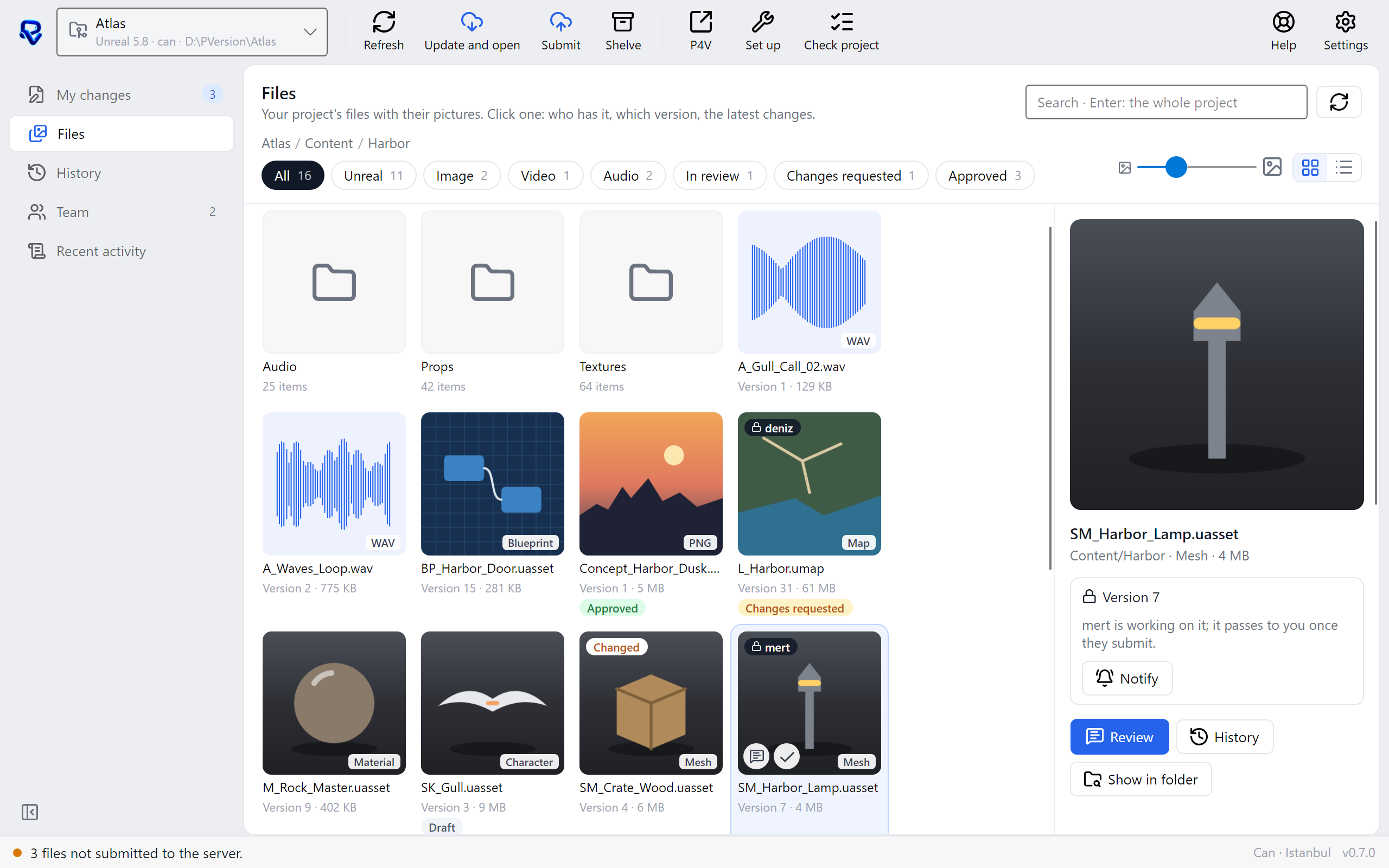
Moving between folders
The page opens at the top of the project. Folders come first, then files. Click a folder to go into it; click a name in the path line at the top (project name / folder / subfolder) to go back up.
- Folders that are on the server but not yet on your computer say
not hereunder their name. Their files are listed too, drawn faded. - If you open a folder that is not on your computer, you see the server's copy of it.
- Folders at the top of the project that Unreal and Unity rebuild on every computer (such as
Saved/,Intermediate/,Library/) and the cache folders of editing programs are not listed. - A folder with a lot of files shows the first 300; Show more at the bottom brings the rest.
- The refresh button at the top right reads the folder again.
Grid, list and thumbnail size
The two buttons at the top right switch between Grid and List view. In grid view, the slider next to them sets the thumbnail size. Your choice is kept for next time.
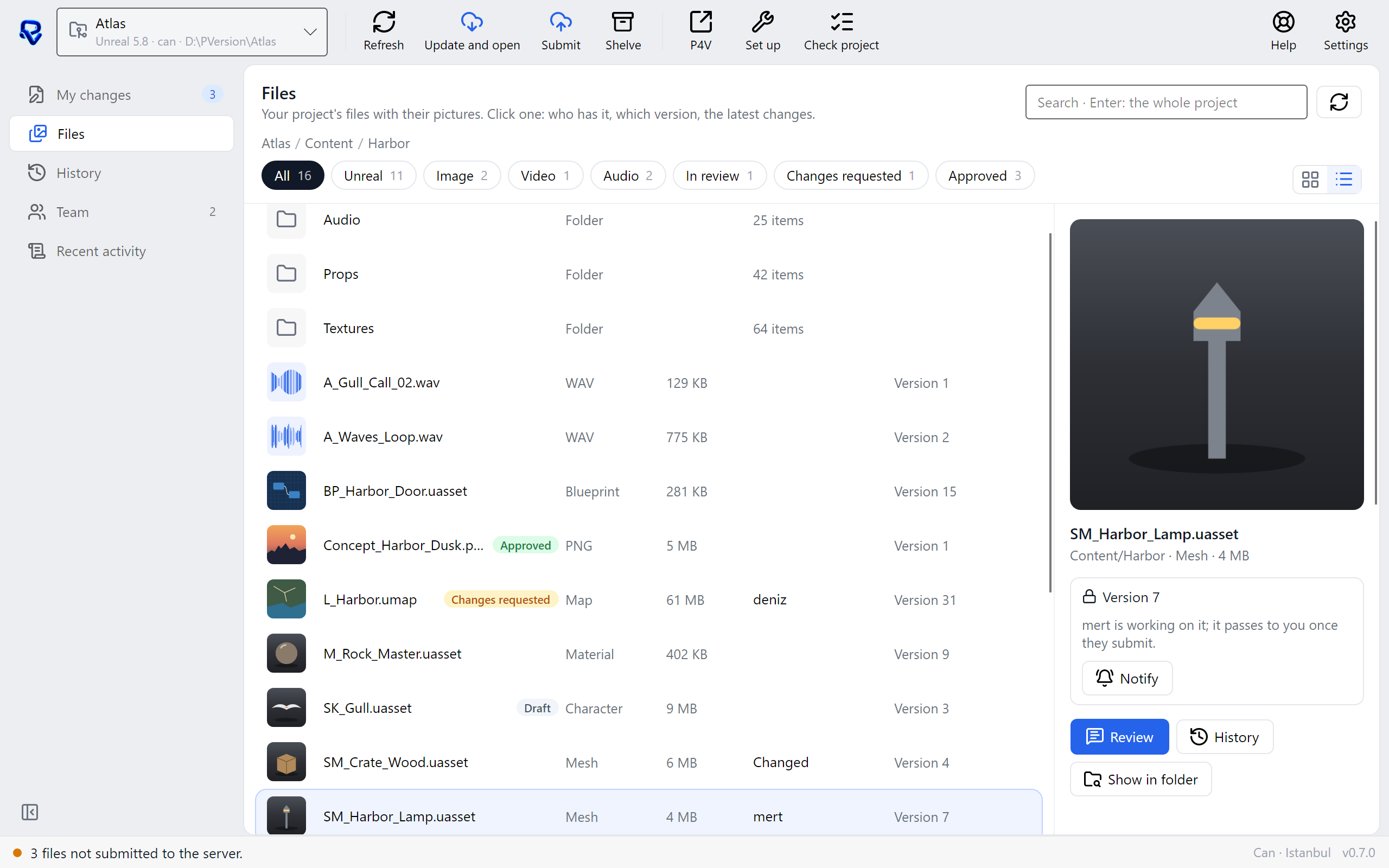
In list view each file is one row: thumbnail, name, type, size, state and version.
The buttons under the path line filter by type: All, Unreal, Image, Video, Audio, Project, Document, Other. Once files have a review status, In review, Changes requested and Approved appear too (see Review and approval). A button only shows when the folder has that kind of file.
What the thumbnail labels mean
The short label in the thumbnail's corner tells you where the file stands:
| Label | Meaning |
|---|---|
| New | A file you added that has not been submitted yet |
| Changed | You changed it; it is waiting to be submitted |
| Deleted | You deleted it; once you submit, it is gone from the server too |
| A person's name and a lock | That person has the file open; it passes to you once they submit |
| Not here | On the server, not yet on your computer |
| Newer version | The server has a newer version |
| Only here | A camera original in a video project; it never goes to the server |
Files you do not have yet and newer versions come with Update and open (see Getting latest).
The file panel
Click a file and the right-hand side shows its large picture, name, folder, type and size. The box below gives its version and a sentence about where it stands, such as "Same as on the server." or "Deniz is working on it; it passes to you once they submit."
The buttons in the panel depend on the file:
- Notify: shown when someone else has the file open. Their app gets a notification that you are waiting for it. More in Locks.
- Review: opens the newest version in the review window; the number of open notes shows on the button.
- Open: opens the file with the program your computer uses for that type. Not shown for Unreal assets; open those in Unreal.
- History: shows every version of the file, and lets you go back to one (see History and undo).
- Show in folder: shows the file in your computer's file browser.
- Delete: deletes the file from your computer and the server (see Deleting a file).
Below the buttons there can be three sections:
- AI: what the AI saw in the file, as a sentence and tags. See AI tags.
- REVIEW: a status, tags and a note for the newest version. See Review and approval.
- LATEST VERSIONS: the last four versions, each with its number, who submitted it, when, and the submit description.
Deleting a file
Right-click a file and choose Delete, or pick the file and click Delete in the panel or press Delete on the keyboard.
To delete several files, pick them one by one with Ctrl or as a run with Shift; Ctrl+A picks every file in the folder. Folders stay out of the selection. The right-hand panel says how many files are picked.
PVersion first says in a warning line how many files will be deleted, and asks. If you confirm:
- The file leaves the server at once. You do not need to click Submit; it shows among the submits as
Deleted: file name. Several files go in one submit. - Your computer's copy moves to the Recycle Bin.
- It leaves your teammates' computers at their next Update and open.
- In a website project, it leaves the site at the next publish.
A file that was never submitted only moves to the Recycle Bin.
Deleting is refused when:
- Someone else has the file open. Wait until they submit. If you picked several files, the warning line counts these and they are not deleted.
- Another program on your computer has the file open. Close that program first.
- Your Unreal or Unity project is open. Close it first. An asset that other assets depend on is safer to delete inside Unreal.
Camera originals in a video project have no Delete, because the server has no copy of them.
A deleted file is not lost: the server keeps all its versions. To bring it back, see Bringing back a deleted file.
Searching: this folder or the whole project
The search box at the top right works in two ways:
- As you type, it filters the files in the open folder. It looks at the file name, the review tags people gave it, and the AI's tags and sentence.
- Press Enter and it searches the whole project by what is in the files (for example
harbour at night,red car). The results replace the folder, with a line at the top saying how many files were found. To go back, click Back to the folder or clear the box.
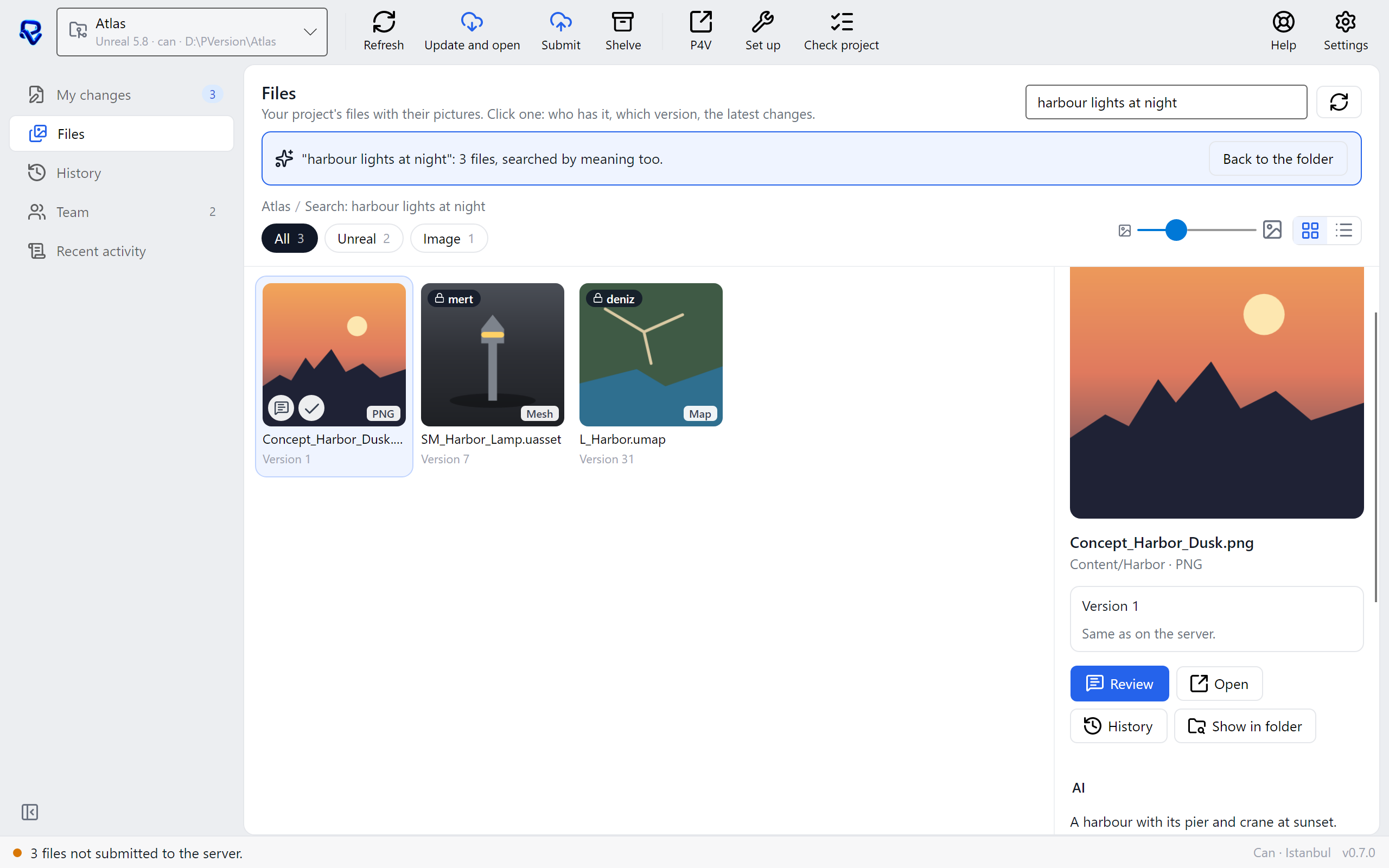
Searching the whole project works on the files the AI has looked at; AI tags explains how.
Ask the assistant on the site or write to [email protected].