 PVersion
Unity
Using PVersion with Unity projects: .meta files, the project settings you need, the folders that are never sent, and file names.
PVersion recognises Unity projects by itself: when the project folder has an Assets/ folder and a ProjectSettings/ProjectVersion.txt file, the app treats it as a Unity project. Getting latest and submitting happen in the app, and you can also install the PVersion package to do the same from inside the Unity Editor.
Opening the project
In the app, click Update and open: what the team submitted is downloaded, then the project opens in Unity.
- The app reads which Unity version the project was made with from
ProjectSettings/ProjectVersion.txt, and looks for that version where Unity Hub installs it. - If that version is not on your computer, the app says so and opens the project folder. Install the project's version from Unity Hub, then click Update and open again.
So that Unity can save files, the app makes the downloaded files writable in Unity projects, and puts what you save on the list to submit by itself. Your changes show on the app's My changes page and are submitted from there (see Submitting).
The Unity package
The package adds a PVersion menu and a panel to the Unity Editor. It doesn't work alone: it talks to the app on the same computer.
To install it, open Settings → Unity in the app and click Install the Unity package. It goes into the project's Packages folder and Unity compiles it by itself, so Unity can stay open. When you submit it from My changes, your team gets it at their next get latest.
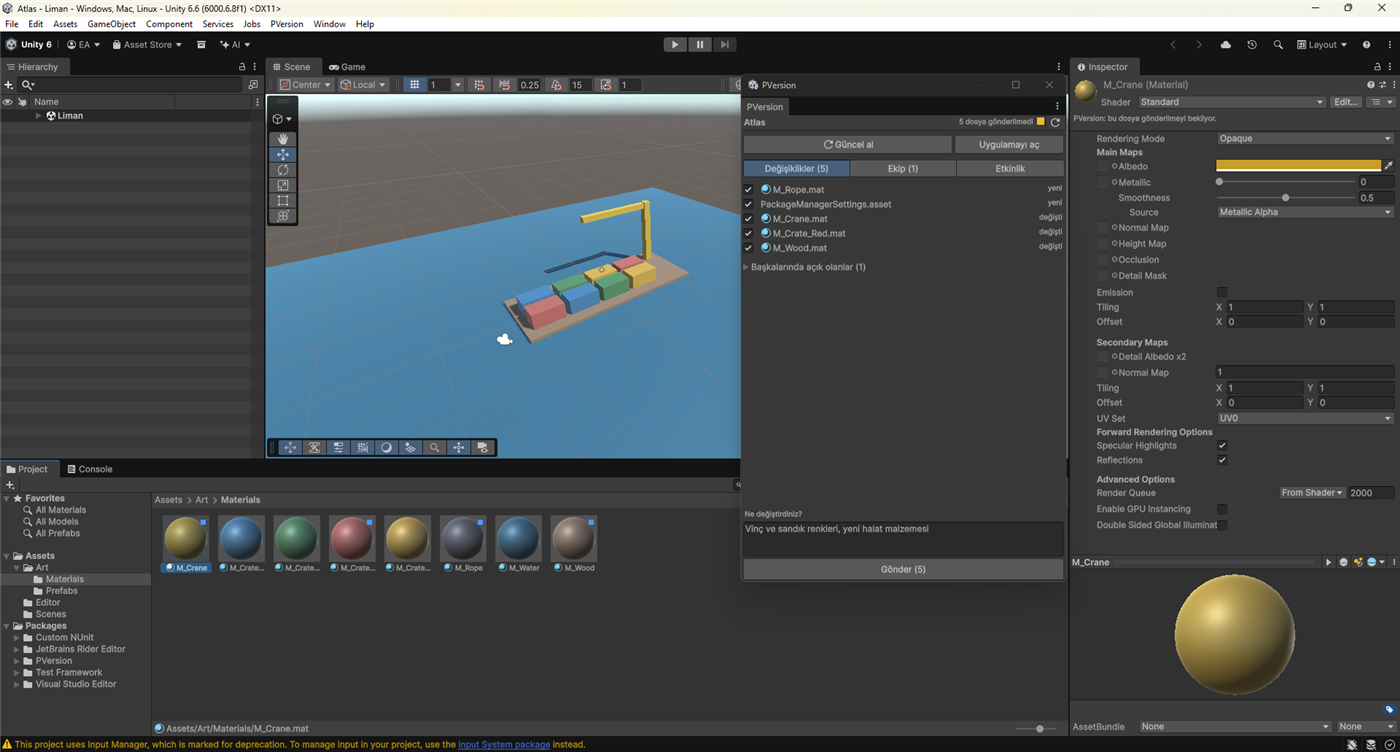
In the panel, opened with PVersion → Panel in Unity, you can:
- Get latest: receive what the team submitted. If you have unsaved scenes, you're asked first.
- Changes: tick the files you want to send, write what you changed and submit.
.metafiles go with their assets and aren't listed separately. - Team: see who is online and who holds which file.
- Activity: see the team's latest submits.
In the Project window, files someone else has open show a lock, and the ones you changed show a blue dot. Selecting or saving a file someone else has open gives you a warning but doesn't stop you.
For an asset's earlier versions, right-click it in the Project window and choose PVersion → History. Go back adds that version to your changes; it reaches the team when you submit.
Two project settings you need
In Unity's Project Settings window, check two settings:
| Setting | Value | Why |
|---|---|---|
| Version Control → Mode | Visible Meta Files | Without visible .meta files, references break on other computers |
| Editor → Asset Serialization | Force Text | Scenes and prefabs are stored as readable text |
After setting up and downloading the project, the app looks at these two settings. If one is off, it writes a line on the Recent activity page; it does not change the project itself.
.meta files
Unity keeps each asset's identity in the .meta file next to it. If an asset is submitted without its .meta file, references break on other computers: pink materials, missing scripts.
PVersion keeps an asset and its .meta file together:
- When you submit a single file with Submit on its row in My changes, its
.metafile goes with it if it is on the list too. - When you remove a new, not yet submitted asset with Discard, its
.metafile goes to the Recycle Bin with it. - When an asset's name is fixed, its
.metafile gets the same name (below).
If references broke on another computer, a .meta file was most likely left out of a submit. Ask the person who added the file to submit it, then click Update and open.
Folders that are never sent
Folders Unity rebuilds on every computer do not go to the server. Library/, Temp/ and UserSettings/ at the root of the project folder are never sent. In new projects, the Obj/, Builds/, Logs/ and MemoryCaptures/ folders at the root, and the .csproj and .sln files Unity generates, are left out from the start too.
These folder rules apply only at the project root; a folder called Library elsewhere in the project, such as an asset library, is not touched.
File names
The server accepts only plain letters, digits, spaces, dots, dashes and underscores in names; files with letters such as ü or ş don't go until they are fixed. Such files are listed on the app's File names page.
Because Unity links assets by the identity in the .meta file rather than by file name, the app can fix names in Unity projects itself, asset and .meta file together:
- Close Unity.
- On the File names page, click Rename for one file, or Fix with suggested names for all of them.
- The renamed files come to My changes; submit them with Submit to server.
More in File names.
Locks
Images, sounds, videos and 3D model files such as .fbx cannot be merged, so they open locked and only one person at a time can change and submit them. The Team page shows who holds what. More in Locks.
If a file cannot be saved ("read-only") or Unity opens with the wrong version, see Unreal and tools problems.
Ask the assistant on the site or write to [email protected].