 PVersion
Video teams
PVersion for film and video projects: camera originals stay on the computer, the team works with proxies and project files, and edit files are locked.
In film and video projects raw footage takes terabytes, and not everyone needs it. With PVersion the camera originals stay on the computer that shot or holds them and never go to the server. The team works remotely with small proxy files and the project files, and every version of those is kept.
Setting up the video layout
In a new video project the app makes the folders for you:
- Open Files in the app's left-hand menu.
- Click Set up video layout at the top right.
Six folders are made in the project folder:
| Folder | What goes in it | Sent to the server? |
|---|---|---|
Originals | Camera originals (RAW, full resolution) | No, it stays on this computer |
Proxy | Small proxy files for editing | Yes |
Project | Premiere Pro and After Effects project files | Yes |
Audio | Sound files | Yes |
Graphics | Graphics and images | Yes |
Output | Exports | Yes |
The Set up video layout button shows in projects that hold no Unreal or Unity project and have no Originals folder yet. When the app is in Turkish, the folders get Turkish names (Orijinaller, Proxy, Proje, Ses, Grafik, Cikti).
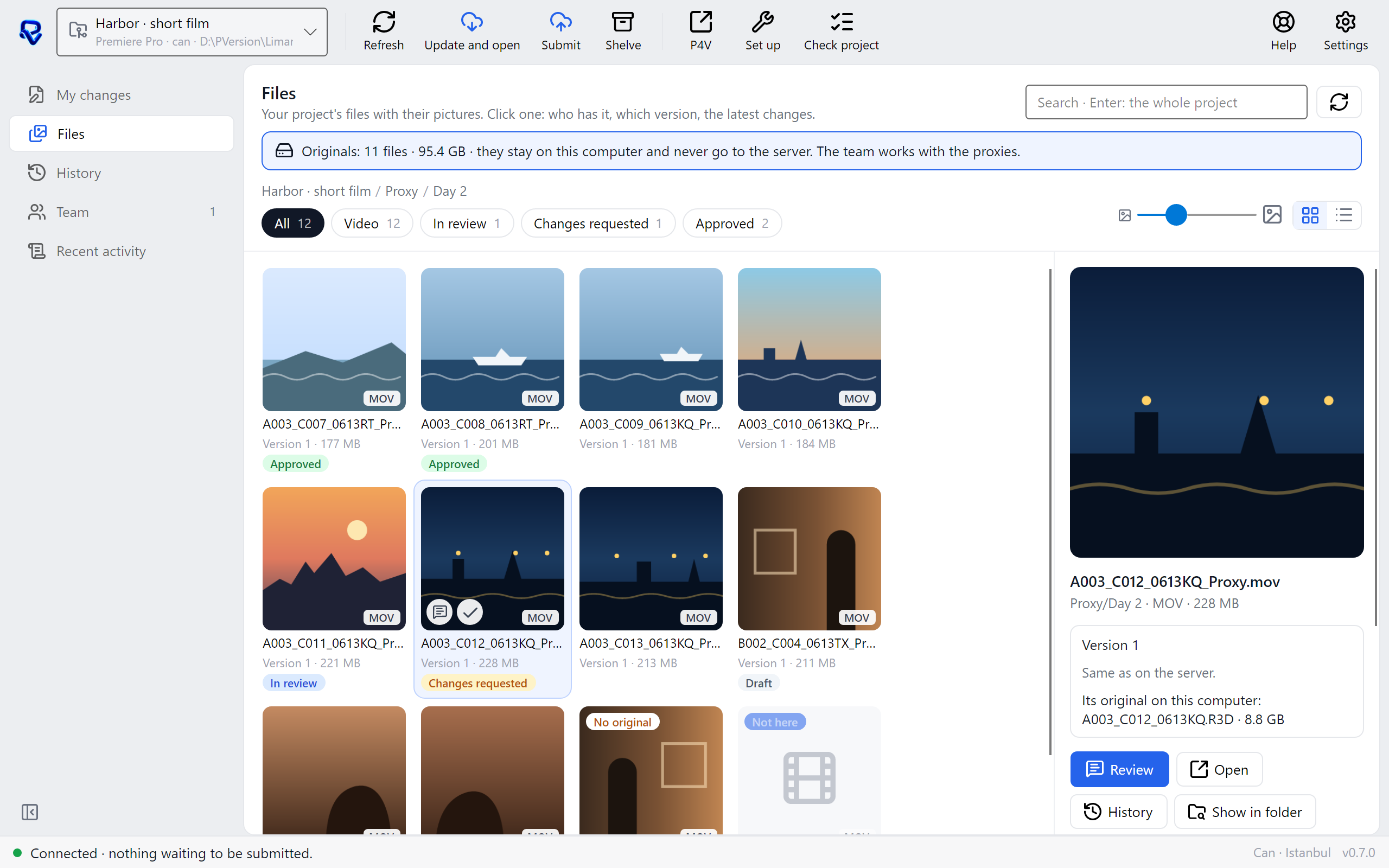
Originals stay on the computer
A project with an Originals folder at its top counts as a video project. No file in that folder is sent to the server.
- On the Files page of a video project, the line at the top gives the number of originals and their total size.
- The
Originalsfolder and the files in it show with the Only here label. - On a team member's computer without the originals, the folder is empty; that person works with the proxies.
Proxies and their originals
The app looks for each proxy's original by name, in the Originals folder on this computer. Endings that proxy tools add to the name, such as _Proxy, are ignored: A003_C012_Proxy.mov matches A003_C012.R3D.
- Click a proxy and the file panel gives its original's name and size.
- A proxy whose original is not found says No original in its corner. The original has to be in the
Originalsfolder under the same name.
When the edit comes back to the computer that has the originals, the editing program links the timeline to the originals by their names, and you export at full resolution.
Project files are locked
Premiere Pro and After Effects project files cannot be merged, so they open locked. Two people cannot change and submit the same edit at once, nobody's work gets overwritten, and every version stays in the history. Camera and audio files open locked too. When the edit file is with someone else, the Files page shows who has it; Notify tells them you are waiting. More in Locks.
Open in the file panel opens a project file with the program your computer uses for it; a .prproj file in Premiere Pro, for example.
The auto-save, preview and cache folders of Premiere Pro and After Effects (such as Adobe Premiere Pro Auto-Save and Media Cache) are never sent to the server.
DaVinci Resolve
With DaVinci Resolve, PVersion works for the media and proxy workflow: originals, proxies, sound and graphics are shared as described above.
Review on video
Leave edit notes on the video's frames, with their time: on the Files page, click the video and then Review. Move to a moment with the time bar, draw on the frame and write your note; on Windows, frames of ProRes, DNxHR and MXF files can't be shown, so for those you type the note's time yourself; it is saved with that time (for example 0:12).
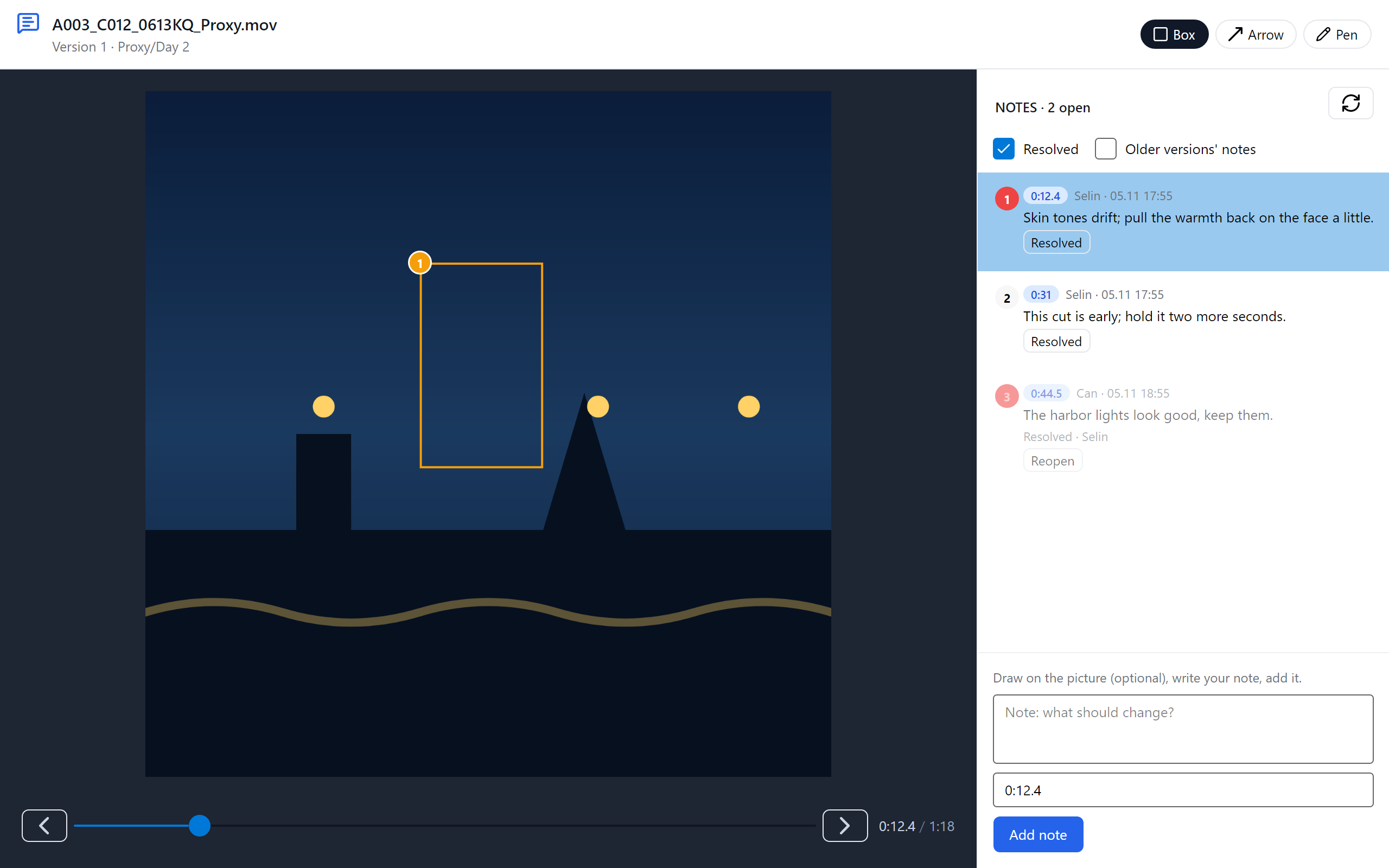
More in Review and approval. You can give files a status of Draft, In review, Approved or Changes requested, and name moments such as the cut sent to the client with milestones.
There are separate plans for video teams; for storage and team sizes, see Plans.
Ask the assistant on the site or write to [email protected].