 PVersion
Submitting your work
See your work on the My changes page, write a description and submit it to the server, or submit or discard a single file.
A change you make on your computer stays only on your computer until you submit it. Submitting puts your work on the server, and the team gets it with their next Update and open. Everything you're about to submit is listed on the My changes page.
The My changes page
Files you save show up in My changes within a few seconds; PVersion watches the project folder on its own. If you're working in Unreal, save first (Save All).
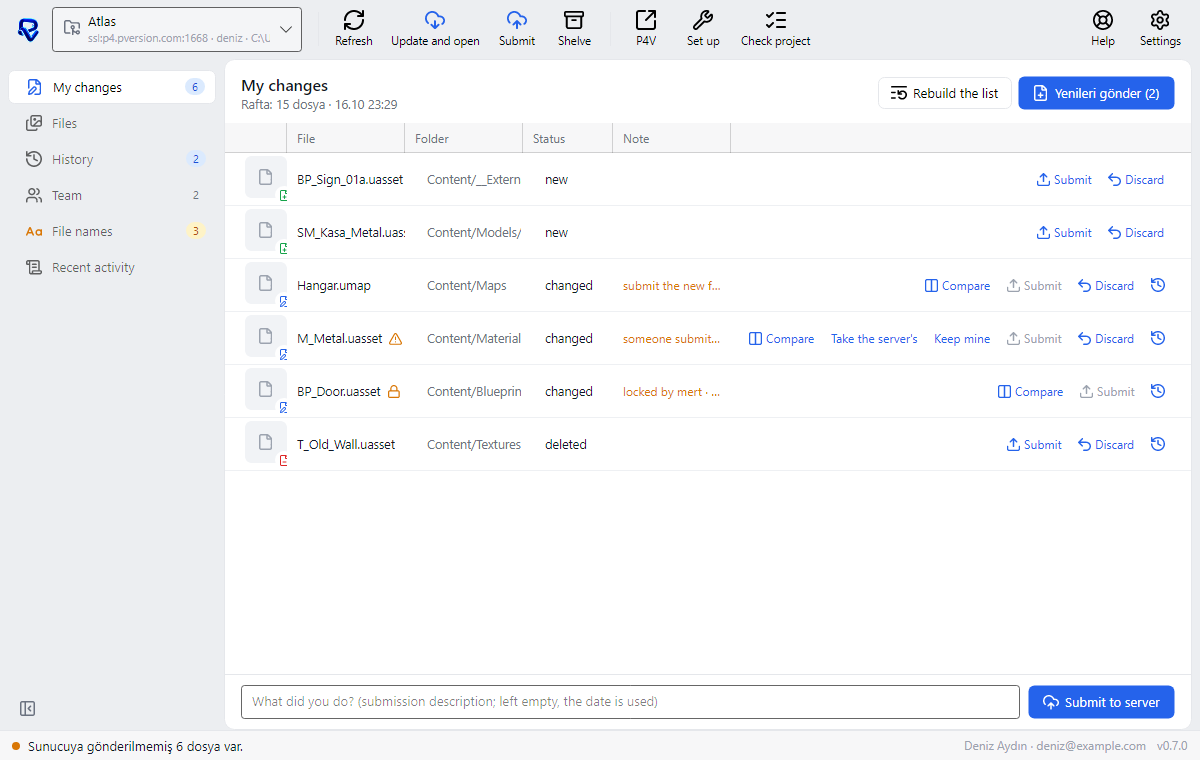
Each row shows:
- File and Folder: the file's name and where it is in the project. A lock icon means someone else has the file; a triangle means the server has a newer version of it.
- Status:
new,changedordeleted. - Note: if the file can't go right now, the reason (see below).
- On the right, the row's buttons: Compare, Submit, Discard and the file's history.
The number next to My changes in the left column is how many files haven't been submitted. The "On the shelf: …" line under the title says when your work was last shelved; see Shelving work.
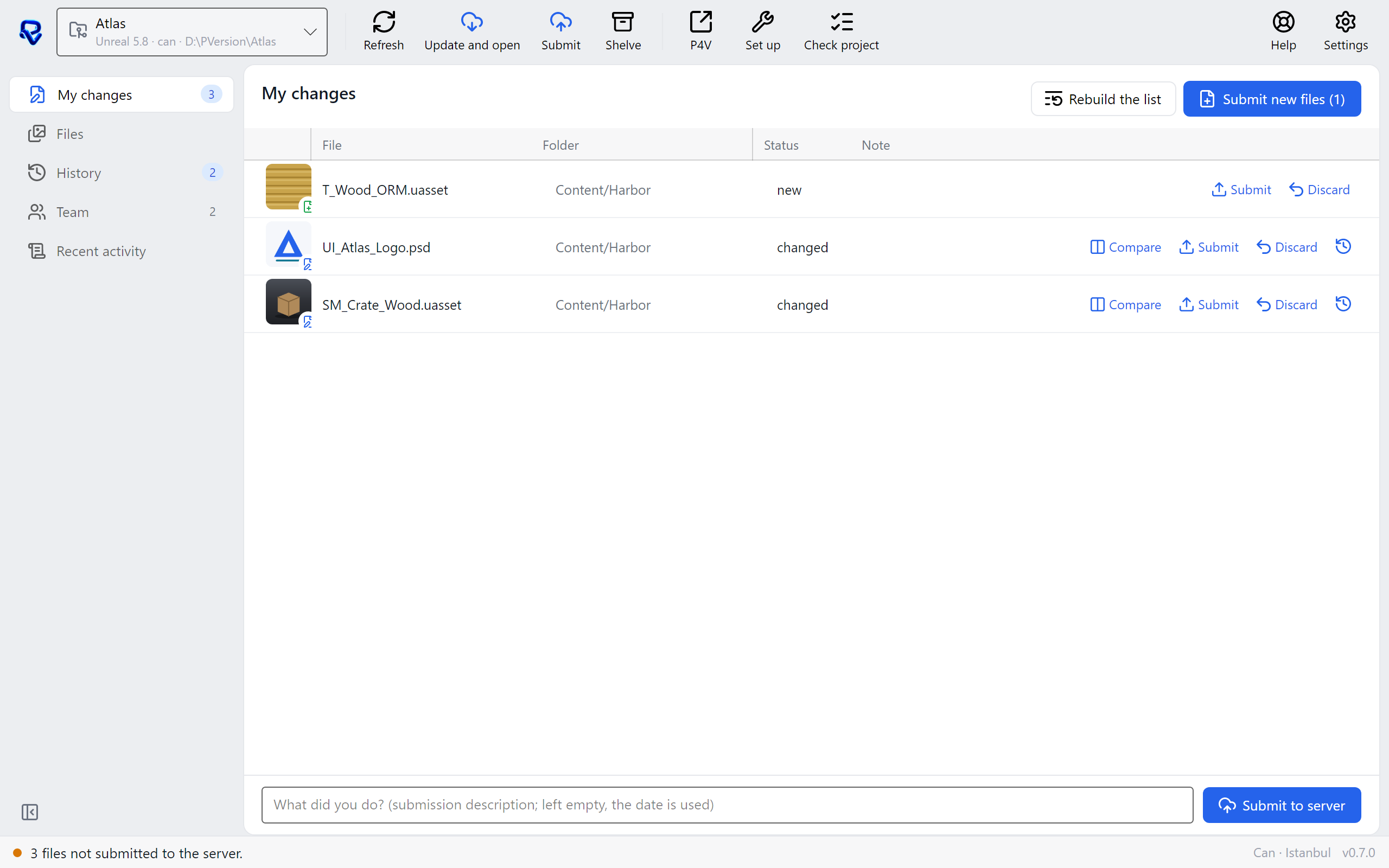
Submitting everything at once
- Type what you did in the box at the bottom ("What did you do?"). This is the submission's description, and it's what the team reads in History. If you leave it empty, the date and your email address are used.
- Click Submit to server. Submit in the toolbar does the same thing.
- PVersion looks at the folder once more (so your latest saves are included), then submits every file that can go, all together: new, changed and deleted files.
- Progress shows in the status bar. When it's done, the status line says "Submitted."
Rows that can't go stay on the list and aren't skipped silently; they're named: "Submitted; 2 files are waiting: …". The reasons are in each row's Note column.
Submitting or discarding a single file
- Submit on a row submits only that file. If the description box has text, that description is used. In Unity projects, an asset and its
.metafile go together. - Discard on a row drops your change: for a changed file, the server's copy comes back. For a new file, PVersion asks first ("… is not on the server yet. Remove it from the list and move it to the Recycle Bin?"); Yes, remove takes it off the list and moves it to the Recycle Bin, Cancel does nothing.
New files go first
While there are new files on the list, Submit is off on the rows of changed files, and the Note column says "submit the new files first". The reason: a changed file may depend on new ones (a map that uses a new material, for example). If it went on its own, it would open broken for your teammates.
- The Submit new files button at the top of the page (with the count next to it) submits all new files together. After that you can submit changed files one by one.
- Submit to server sends everything together anyway, so it takes care of this order for you.
Notes on a row
| Note | What it means and what to do |
|---|---|
| submit the new files first | Use Submit new files first, or send everything with Submit to server. |
| someone submitted a newer version; pick one | See The server has a newer version. |
| locked by Mert · your save stays on your computer; it passes to you once they submit | Someone else has the file; see File locks. |
| breaks the naming rule; fix it on the 'File names' page | See File names. |
| redirector left at the old name; remove it with Discard | A file an Unreal rename left behind at the old name; remove it with Discard. |
| also on the server; choose one in the 'Also on the server' list | See The server has a newer version. |
What never gets submitted
Some folders and files are produced by the tools on every computer; they never go to the server and don't appear in My changes:
| Tool | Not submitted |
|---|---|
| Unreal | Saved/, Intermediate/, DerivedDataCache/, Binaries/ (except plugins' Plugins/…/Binaries/ folders, which do go), the personal Content/Developers/ folder |
| Unity | Library/, Temp/, Obj/, Builds/, Logs/, UserSettings/, MemoryCaptures/ at the project root |
| Premiere Pro, After Effects | Auto-save, preview and Media Cache folders, .prlock files |
| Blender | Backup copies (.blend1, .blend2 …); the .blend file itself does go |
| Video project | The Originals folder: camera originals stay on this computer |
| Software projects | Package and build folders such as node_modules/, bin/, obj/, .venv/, and .env |
| All | .log, .tmp, .bak files, Thumbs.db, desktop.ini, .DS_Store |
Rebuild the list
Rebuild the list doesn't touch your files: it empties your submission list on the server and gathers it again from what's in your folder. Use it if old entries got stuck on the list after renaming things in Unreal.
Files that can't be submitted
New files whose names break the server's rule are never put on the list; they wait in a separate Cannot be submitted group at the top of My changes. These files don't go to the server, and your teammates can't get them. Fix names in the group takes you to the File names page.
If you submit while such files exist, PVersion asks first: Fix the names first (nothing is submitted, File names opens) or Submit incomplete (the rest goes, these files don't). More in File names.
Ask the assistant on the site or write to [email protected].