 PVersion
Installing the app
Installing the PVersion desktop app on Windows or a Mac, connecting it to the console by approving in your browser, and keeping it up to date.
Everyone who works on the project installs the PVersion desktop app on their own computer. The app connects to the console, lists the projects you can access, and is where you do your daily work. Installing takes a few minutes, and you sign in without ever typing a password into the app: you approve in your browser instead.
Downloading
| Computer | Download |
|---|---|
| Windows 10 and 11 | Download for Windows |
| Macs with Apple silicon | Download for macOS |
| Macs with Intel processors | Download for Intel Macs |
On a Mac you need macOS 12 or later. The same links are on the website's home page. The Windows installer is also on the console's Connect page, under Download the app.
Windows
Run the installer you downloaded. Windows may ask once for administrator approval during the installation. When it finishes, PVersion opens.
Mac
Open the .dmg file you downloaded and drag PVersion into your Applications folder.
Connecting to the console
The first time the app opens, it shows the Connect to the console screen. The address box already contains the console's address (https://console.pversion.com); leave it as it is.
- Click Connect. The console opens in your default browser, and in the app a code appears next to Code shown in the browser:.
- If you are not signed in to the console in that browser, sign in with your email and console password.
- The console shows the The PVersion app wants to sign in page. Check that the code on the page is the same as the one in the app, then click Confirm.
- The console says Approved; you can close the tab. Within a few seconds the app signs in and fetches your projects from the console.
Your password is never entered in the app or shared with it; the app works on your behalf with a session of its own.
Once signed in, the app shows the projects open to you. If it says "You have no projects yet; waiting for an invitation from the console.", you have not been added to a project yet: if you own the studio, create a project in the console first (Your first project); otherwise let the person who invited you know. Downloading the project to your computer is also covered on Your first project.
Settings
The Settings button at the top right of the app opens the settings window.
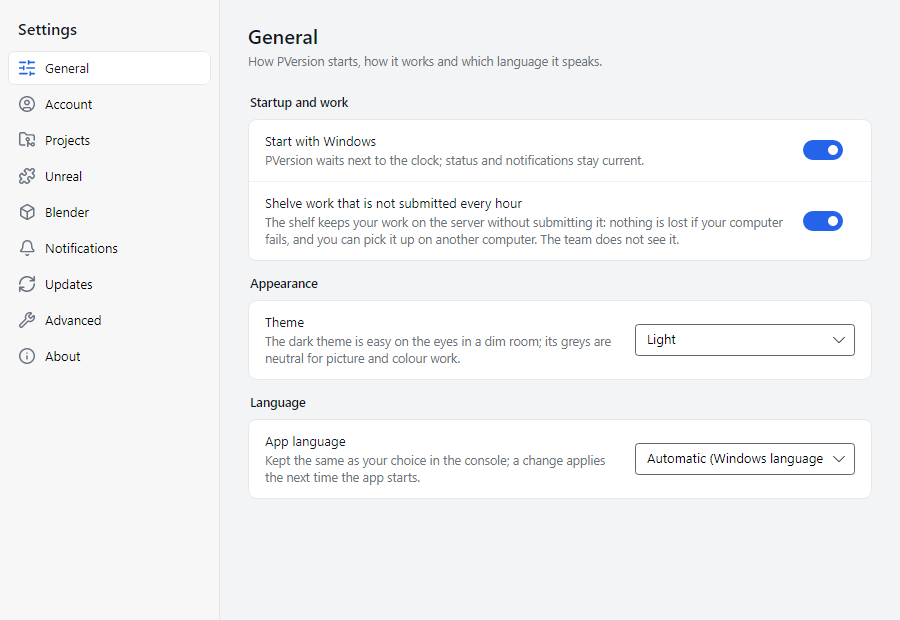
- General: Start with Windows (on a Mac, Start when the computer starts; PVersion waits next to the clock and keeps its status and notifications current), Shelve work that is not submitted every hour and App language. The language follows your choice in the console; a change takes effect the next time the app starts.
- Account: who this computer works for and which console it is connected to. Sign out also closes this computer's session in the console; to use the app again you approve it in the browser once more.
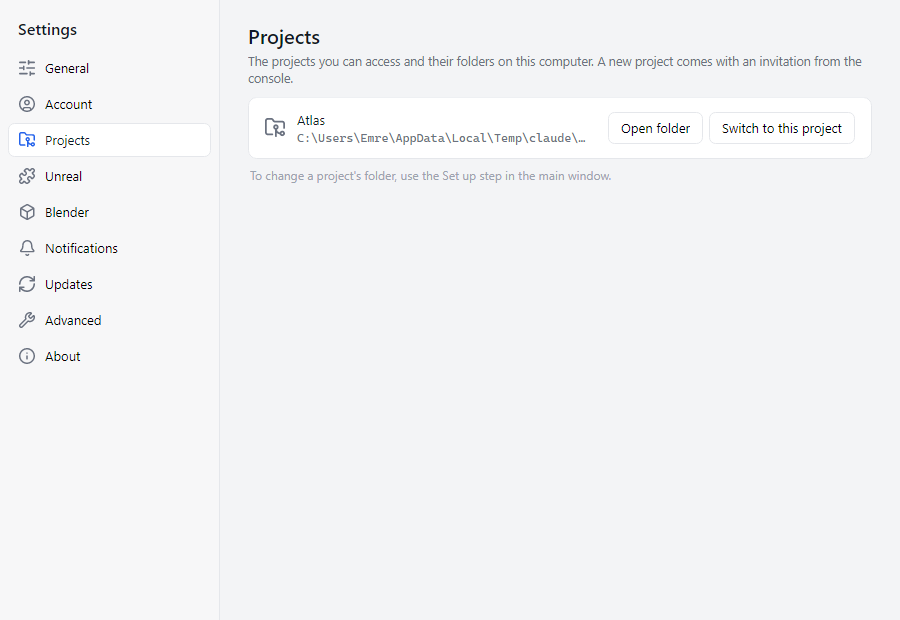
- Projects: the projects you can access and their folders on this computer. Open folder opens the folder in your file manager, Switch to this project switches the main window to that project.
Appearance
- Settings > General > Theme: Light, Dark or As the computer is set. The change applies at once. The dark theme is easy on the eyes in a dim room; its greys are neutral and do not affect how pictures look.
- Folding the left-hand menu: the button at the bottom of the menu, or Ctrl+B, reduces the menu to icons and gives the pages more room. Your choice is remembered. In the folded menu, a dot on an icon means something on that page is for you; point at it to see its name and count.
Updates
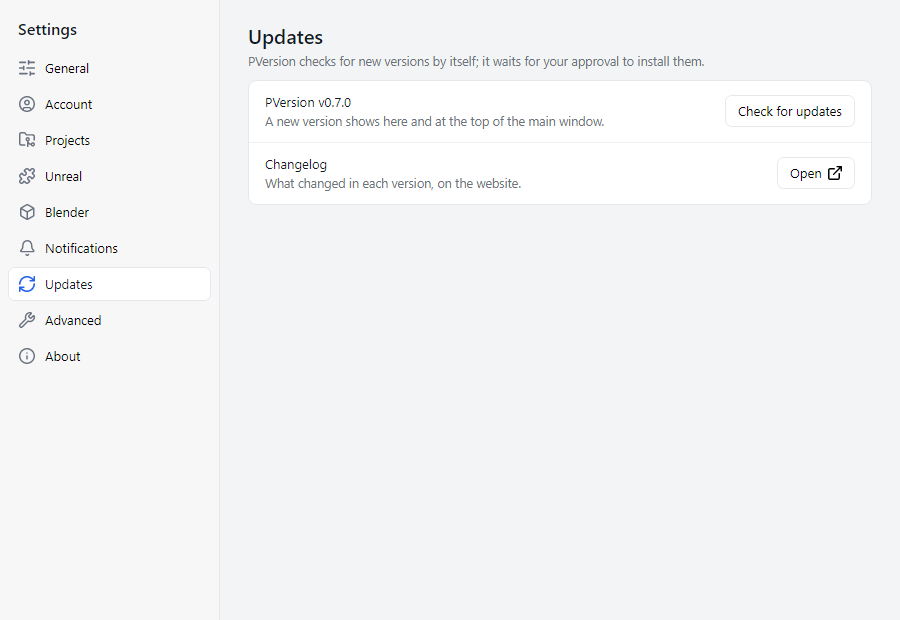
The app checks for new versions by itself: when it starts, every half hour and when its window comes to the front. When a new version is ready, a yellow bar appears at the top of the main window ("PVersion … is ready") and you also get a notification. Nothing is installed until you approve it.
- Save the work you have open.
- Click Update on the bar. The app closes, the new version is installed and the app opens again by itself.
- To see what changed in the new version, use the Click to see what changed link on the bar.
If you don't want to wait, Settings → Updates → Check for updates checks right away. In the same section, Open on the Changelog row shows what changed in each version on the website.
If something goes wrong
- The browser did not open: check your default browser, then click Connect again.
- The console cannot be reached: check your internet connection and the address in the address box.
- For anything else, see Connection and sign-in, or write to us from Help → Open a support case in the app.
Ask the assistant on the site or write to [email protected].