 PVersion
Compare
Before you submit, see the server's version of a file and the copy on your computer side by side.
You changed a texture, a model or a concept, and before you submit you want to see what changed. The Compare window puts the server's version of the file and the copy on your computer side by side.
Opening Compare
- Open My changes in the app's left-hand menu.
- On the row of the file you changed, click Compare.
The window opens with the file's name at the top. You can close it and click Compare on another row.
Which files
The Compare button shows for changed files that a picture can be made of:
- Images (such as
.png,.jpg,.psd,.tga,.exr) - Unreal assets (
.uasset,.umap) - Videos
- PDF files
New and deleted files have no button: there is no second state to compare with.
For images and Unreal assets, the picture of the server's version is made from the file itself; for Unreal assets, what you compare is the preview Unreal saved for the asset. For videos, PDFs and other files, PVersion shows the preview it made when that version was submitted (see AI tags). Where no picture can be made of a version and it has no preview, the file type's icon stands in its place.
What the window shows
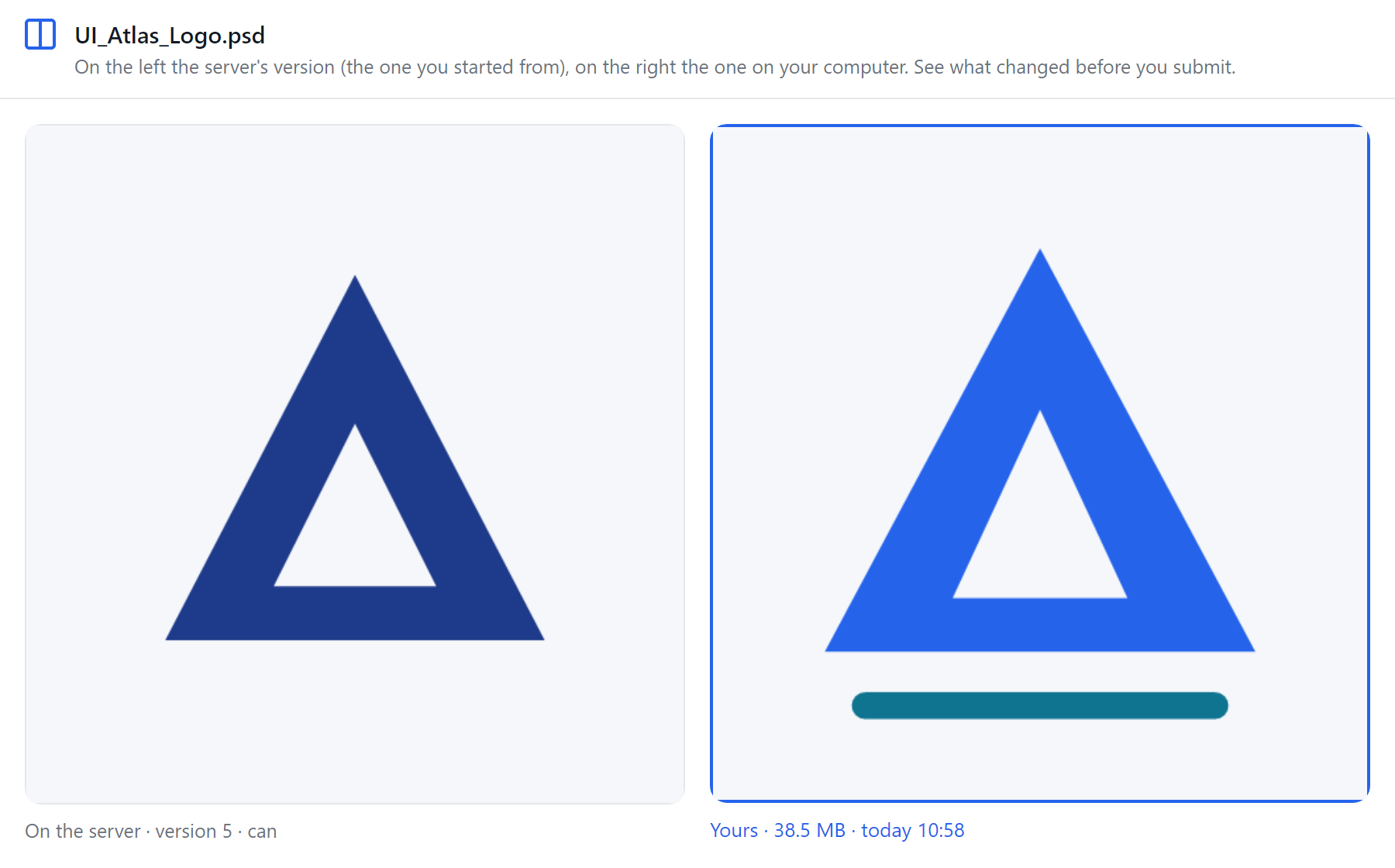
- On the left, the server's version: the one you started working from. Under it are the version number and who submitted it, for example "On the server · version 7 · Mert".
- On the right, the copy on your computer, framed in blue. Under it are its size and when it was last saved, for example "Yours · 24 MB · 31.10 14:05".
The left side is always the version you started from, not the newest one on the server. If someone on the team submitted a newer version of the same file while you were working, the row also warns that the server has a newer version; Newer version on the server explains what to do.
After comparing
- If the change is what you want, submit just this file with Submit on the same row, or everything with Submit to server at the bottom of the page (see Submitting).
- If you don't want the change, click Discard on the row: your change is dropped and the server's copy comes back.
Comparing older versions
Compare only sets the change on your computer beside the version you last got. To see the pictures of a file's older versions, open the file's History window; every version is listed with its picture (see History and undo).
Ask the assistant on the site or write to [email protected].