 PVersion
Milestones
Name a submit on the History page (Demo v1, Cut sent to the client) so the project's important moments are easy to find on the timeline.
Some moments in a project matter more than others: the demo that went to the publisher, the cut sent to the client, the final delivery for a festival. A milestone gives one of those moments a name. It sits on the timeline of the History page with a flag, everyone on the team sees it, and nobody has to dig for "what was in Demo v1?".
A milestone is put on a submit: that submit is named as the state of the project at that moment.
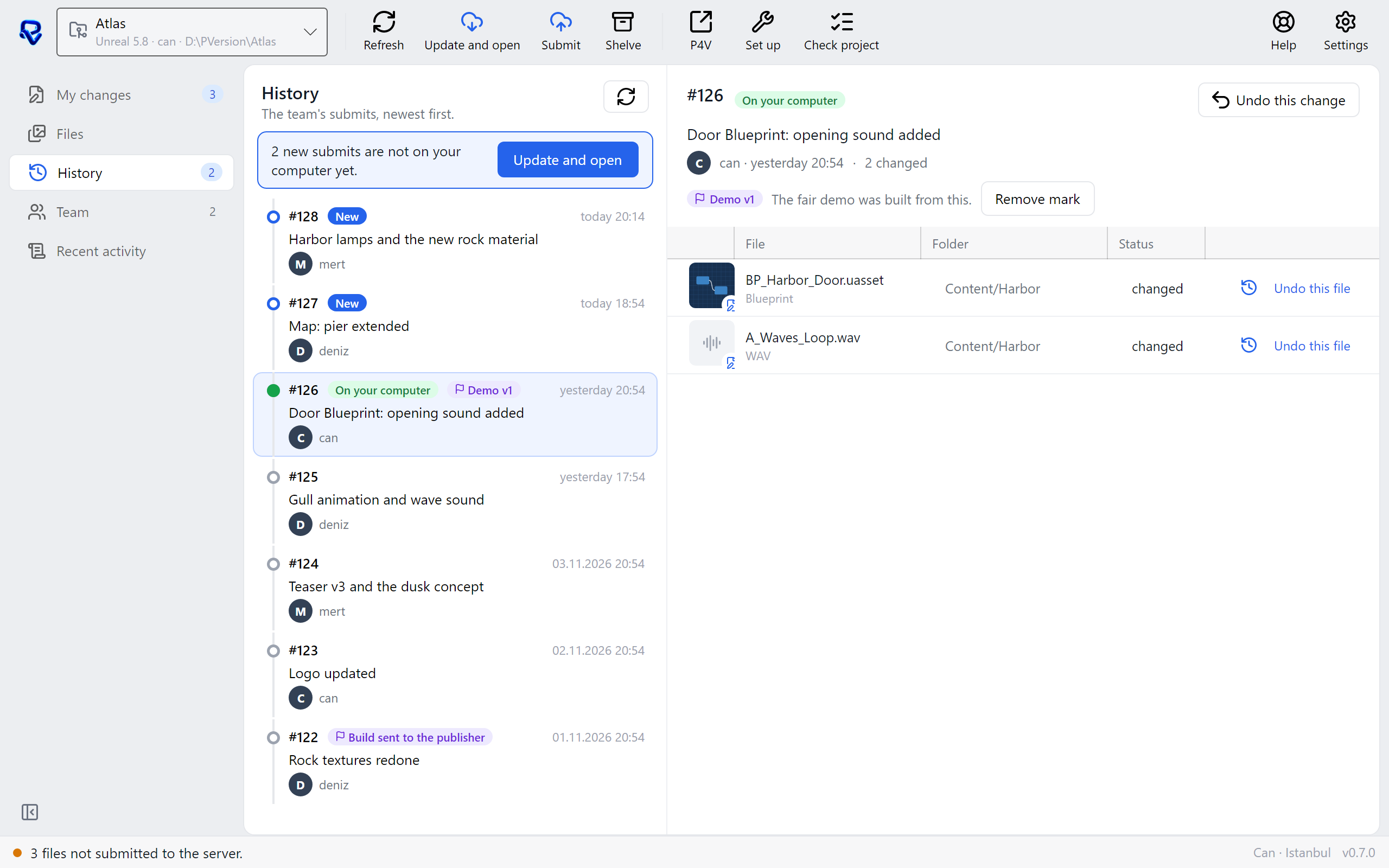
Adding a milestone
- Open History in the app's left-hand menu.
- On the timeline, click the submit you want to mark. Its description and the files it changed show on the right.
- Click Mark this point.
- Type a name, such as
Demo v1orCut sent to the client. A name can be up to 80 characters. - If you like, add a note: why it matters, who it went to. A note can be up to 500 characters.
- Click Mark. To leave it, click Cancel.
The milestone shows on the timeline straight away, with a flag next to the submit's number. A submit takes one milestone; on a submit that already has one, Mark this point does not show.
Seeing milestones
- On the timeline, each submit's row shows the milestone's name with a flag, if it has one.
- Click a marked submit and the flag, the milestone's name and its note show on the right.
- Milestones are shared by the whole team: a milestone one person adds shows in everyone's app.
The other labels on the timeline, such as New and On your computer, tell you whether the submit has reached your computer. More in History and undo.
Removing a milestone
- In History, click the marked submit.
- Click Remove mark next to the milestone's name.
The milestone is gone right away, for everyone on the team. You can mark the same submit again later if you need to.
Milestones don't change files
Adding or removing a milestone only puts a name and a note on a submit; it changes no file and no submit. Taking the project back is a different job: to return a submit or a single file to its earlier state, see History and undo.
The status of one version of a file (Draft, Approved and so on) is separate from milestones; Review and approval covers it.
Ask the assistant on the site or write to [email protected].