 PVersion
Unreal and tool problems
Common problems in Unreal, Unity, Blender and video projects; app updates and the first launch on a Mac.
This page covers problems that come up when you use PVersion together with an editor, and the app's own updates. Most of the time the app says what happened in a notice at the top of the window or in the status line at the bottom. When the line is red, click Ask about this; the Help window shows the matching fix and its button. For day-to-day work with the editors: Unreal Engine, Unity, Blender, Video teams.
Unreal does not connect to the server
Why it happens: Unreal keeps its connection setting in a file inside the project; the file may have been deleted or may have come from another computer. Revision Control does not show as connected in Unreal.
- Close Unreal.
- Click Write Unreal connection. The app says
Unreal connection file written; reopen Unreal. - Open Unreal from the app with Update and open; Revision Control comes up connected.
Unreal: the file is read-only and cannot be saved
Why it happens: Files that come from the server are locked until you start working on them. When Unreal is connected, it opens the file itself as you save; when it is not, it cannot, and says the file is read-only.
- Check in Unreal whether Revision Control is connected (bottom right corner).
- If it is not, follow "Unreal does not connect to the server" above.
- Save the file again; if Unreal asks to open it (Check Out), say yes.
Unreal does not show new files
Why it happens: Unreal does not always put new files that have never been on the server into its own list; they show as "uncontrolled", or View Changes stays empty. The app gathers these files itself.
- Save in Unreal.
- Click Submit to server in the app; new, changed and deleted files are all gathered.
Unreal wants to rebuild plugin modules when it opens
Why it happens: The project has a plugin from Fab or the Marketplace, and the plugin's built files (Plugins/<plugin>/Binaries) are not on the server; or the Unreal version on this computer differs from the one the project was prepared with. Without Visual Studio installed, answering Yes cannot build them.
modules are missing or built with a different engine version
- Answer No in this window. If it offers to disable the plugin, do not accept either, and close the project; if you disable it, the project file changes, so do not submit that.
- The
Plugins/<plugin>/Binariesfolder needs to be submitted from the computer where the plugin works; tell your studio admin. - Once it is submitted, click Update and open in the app.
- Also check that both computers have the same Unreal version (Epic Games Launcher → Library).
If you have your own copy of these files and it differs from the server's, they appear in the Also on the server list in My changes; Take the server's is recommended there (Problems sending and getting files).
Getting the latest does not run while Unreal is open
Why it happens: Changing files under a running editor can break the project, so the app does not get the latest while Unreal has this project open and says … has this project open; close … before updating.
- Save in Unreal.
- Close Unreal.
- Click Update and open in the app; the project opens once the latest has arrived.
If you click Get latest in the PVersion panel inside Unreal, the panel warns you first; the safest is still to save, close Unreal and click Update and open in the app.
Someone on your team uses another Unreal version
Why it happens: The app compares the Unreal version on this computer with the team's; if a teammate uses a newer one, a notice at the top of the window says "… on your team use Unreal …; you have …". While the versions differ, some assets may not open. This computer's version is shown in the status bar.
- Agree as a team on which Unreal version to use.
- If needed, install that version from the Epic Games Launcher.
- Later hides the notice for this session; it comes back if your version or the team's changes. OK closes it.
The PVersion panel in Unreal does not connect
Why it happens: The panel gets the latest and submits through the PVersion app; it cannot work while the app is closed or another project is selected.
- If the panel says
The PVersion app is not running, click Open the app; the panel connects by itself once the app is open. - If it says
This project is not selected in the app., click Select in the app. - If it says
The app is busy with something else; try again when it is done., wait for the app to finish.
You do not need to do anything to keep the panel up to date: when a new version is out, the app updates the plugin by itself while Unreal is closed and submits it to the team. You can see its state under Settings → Unreal; Check now looks right away.
Unity: the file cannot be saved (read-only)
Why it happens: Files from the server arrive read-only, and Unity cannot open them by itself. In Unity projects the app makes the files writable and gathers what you save.
- Close Unity.
- Click Repair installation, then Set up and download project; the project's files are made writable.
- Open Unity from the app with Update and open.
Unity: pink materials, missing scripts, broken references
Why it happens: Unity keeps each asset's identity in the .meta file next to it. If an asset is submitted without its .meta file, or the .meta files are hidden, references break on other computers.
- In Unity, set Project Settings → Version Control → Mode to Visible Meta Files.
- Submit the asset together with its
.metafile; when you submit a single file, the app takes both. - Ask the person who added the asset without its
.metato click Submit to server, then click Update and open yourself.
Unity does not open, or opens with the wrong version
Why it happens: The project was made with a specific Unity version, and the app looks for that version where Unity Hub installs it. Opening it with another version upgrades the project and causes trouble for the team.
- Find the project's version in
ProjectSettings/ProjectVersion.txtand install that version from Unity Hub. - Then click Update and open in the app.
The PVersion tab does not show or connect in Blender
Why it happens: The add-on is installed into every Blender version on this computer and cannot be switched on while Blender is open. Even when it is installed, the tab cannot work while the PVersion app is closed or the file is not in a project's folder.
- In the app, open Settings → Blender to see the Blender versions on this computer and whether the add-on is installed. With Blender closed, click Install the Blender add-on. Blender 3.6 or newer is needed.
- If the app says the add-on could not be switched on because Blender is open, close Blender and install again, or switch PVersion on in Blender under Preferences → Add-ons.
- In Blender, open the sidebar with the N key; the PVersion tab is there.
- If the tab says "The PVersion app is not running", click Open the app. If it says "This file is not in a PVersion project" or "The file is not saved yet", save the file into the project's folder. If it says "This project is not the one picked in the app.", click Switch to this project.
The team does not get the camera originals
Why it happens: In video projects, the Originals folder that Set up video layout creates stays on this computer on purpose and never goes to the server. The team works with the files in the Proxy folder.
- Put the camera originals in the
Originalsfolder. - Put the proxy files the team will work with in the
Proxyfolder and click Submit to server.
More: Video teams.
A video does not play in the review window
Why it happens: The review window opens videos with the computer's own video support, and some formats (for example ProRes on Windows) cannot be opened. The window then says This video cannot be played on this computer; notes are written with their time.
- You can still write your notes; each note is saved with its time in the video.
- If the team works with proxies, open the review on the file in the
Proxyfolder.
The advanced tool does not connect
Why it happens: The app writes the connection settings of the advanced tool you open from the toolbar. They cannot be written while the tool is open, or they may have been deleted.
- Close the tool.
- Describe the problem in Help and set up the connection again with the button that comes up.
- Open the tool again with its button in the app.
App updates
Why it happens: New versions are announced inside the app. The download finishes in the background and nothing is installed until you agree. When it is ready, a yellow line appears at the top of the window.
- Click Update on the yellow line. The app refreshes in a few seconds and reopens by itself; the Install update button does the same.
- To see what changed, use Click to see what changed on the yellow line.
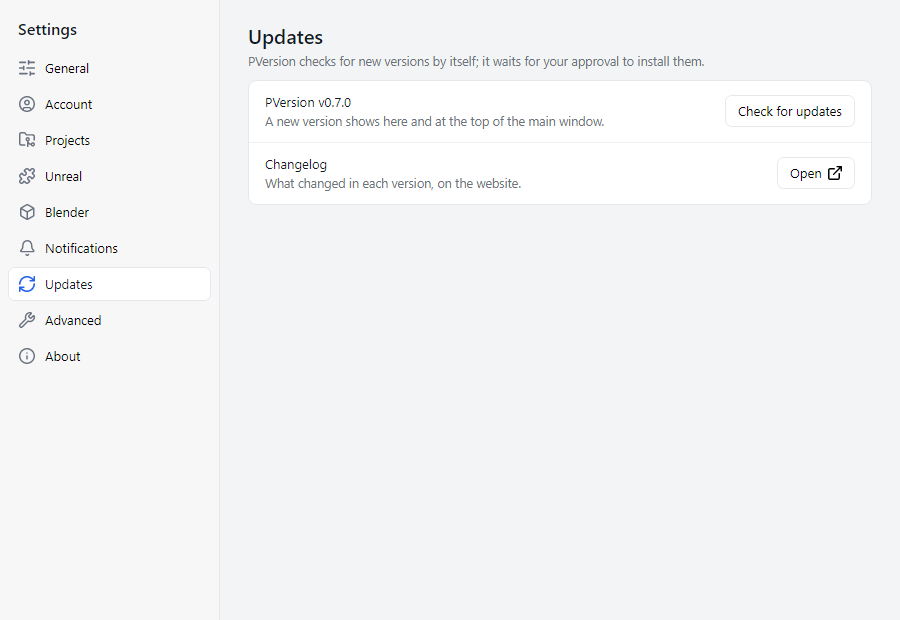
- No yellow line means there is no update. To look by hand: Settings → Updates → Check for updates.
The update failed
Why it happens: The update file could not be downloaded or verified, or the installation was not approved. The status line says Update failed: …; if the downloaded file is damaged it says the downloaded update file could not be verified and the file is not used.
- Check your internet connection; if it says
Could not check for updates: …, the app cannot reach the console (Connection and sign-in). - Download it again with Settings → Updates → Check for updates.
- If the update also renews the tools, Windows asks for administrator approval; click Yes.
The app does not open the first time on a Mac
Why it happens: macOS asks for your approval before it opens the app for the first time.
- Go to System Settings → Privacy & Security → Open Anyway.
- Make sure you downloaded the right file: there are separate downloads for Apple silicon Macs and for Intel Macs (Installing the app).
Still not solved
Click Help → Open a support case; the case includes the app's version, its state, the last error and the recent activity by itself. More: Support and the assistant.
Ask the assistant on the site or write to [email protected].