 PVersion
The server has a newer version
When a newer version of a file you changed has been submitted, choose which one stays.
While you're changing a file, a teammate may submit a new version of the same file. The server then has a newer version than the one you started from, and yours can't quietly go on top of it. PVersion stops and leaves the choice to you: the team's version, or yours?
How you can tell
- In My changes, a triangle appears next to the file's name ("The server has a newer version").
- The Note column says "someone submitted a newer version; pick one".
- Submit on that row is turned off, and Take the server's and Keep mine buttons appear on the row.
- If notifications are on, the app also tells you, for example: "Ayşe submitted a new version of M_Metal.uasset; it conflicts with your change." PVersion checks for this every few minutes.
For locked files (Unreal assets, images, edit projects) this mostly happens when you save a file while someone else has it; see File locks. For code and text files it happens when two people change the same file.
Compare first
Changed files that have a thumbnail (Unreal assets, images, videos, PDFs) have a Compare button on their row. The window that opens shows the server's version (the one you started from) on the left and the one on your computer on the right, side by side.
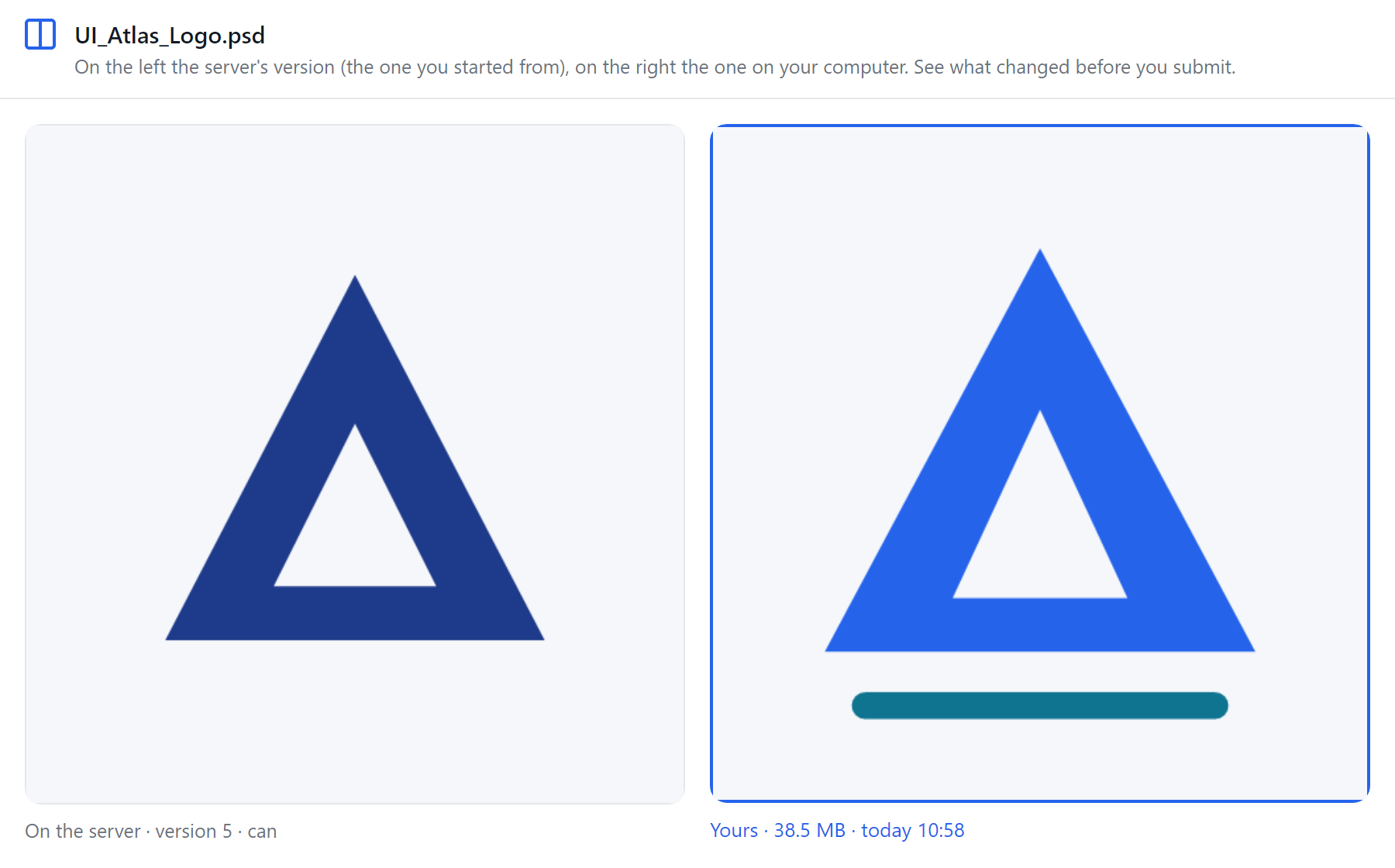
To see the new version your teammate submitted, open the file's history with the history button on the row; it shows who submitted it, when, and with what description. See History and undo.
Take the server's
Take the server's brings the version the team submitted to your computer, and the row leaves the list. Your change isn't lost: your copy of the file goes to the PVersion backup folder first (see Where your copy is kept).
Keep mine
Keep mine says your version should stay. The warning on the row goes away and the file can be submitted ("your version will stay; you can submit it now"). When you submit it, your version becomes the latest.
The version the team submitted isn't lost; it stays in the file's history and can be brought back if needed, with Go back to this version in the file's history or by undoing from the console. See History and undo.
Also on the server
A similar but separate case: your computer has a different copy of a file that's on the server, but you never got it from the server. Fab installed a plugin straight into your project folder, for example, or someone copied the file by hand. PVersion doesn't submit such a file as a new one; it shows it in the Also on the server group at the top of My changes. For each file you pick one:
- Take the server's: your copy goes to the PVersion backup folder and the server's takes its place. Unreal or Unity must be closed.
- Submit mine: your copy goes into My changes as a normal change; submitting it replaces the server's, and the old one stays in history.
For plugins' compiled files (Plugins/…/Binaries), Take the server's is recommended, so everyone on the team works with the same version of the plugin.
Where your copy is kept
Take the server's (on a conflict row and in the Also on the server group) doesn't delete your file; it copies it to the PVersion backup folder first. Go back to this version does the same for a file with a change you haven't submitted. On Windows that folder is:
%LOCALAPPDATA%\PVersion\backup\<date>\<the file's path in the project>
- Each day gets its own folder (like
2026-10-31), and the file keeps the project's folder structure. - If the same file is backed up twice on the same day, the first copy isn't replaced; the time is added to the new one's name.
- The full path is on the Recent activity page, in the "took the server's; yours was backed up: …" line.
PVersion never deletes the copies in this folder on its own; you can get your file back from there whenever you need it.
Ask the assistant on the site or write to [email protected].