 PVersion
Blender
Install the PVersion Blender add-on; get latest, send, and see a file's history and review status from inside Blender.
The PVersion add-on adds a PVersion tab to Blender's sidebar: without leaving Blender you get latest, send your work, and see the file's version, history and review status. The add-on is free and works with the PVersion app on the same computer; it does not connect to any server itself.
Requirements and common questions are also on the Blender add-on page. The add-on runs in Blender 3.6 and later.
Installing the add-on
- Close Blender.
- In the app, open Settings → Blender. The Blender versions found on this computer are listed, each with whether the add-on is installed in it.
- Click Install the Blender add-on.
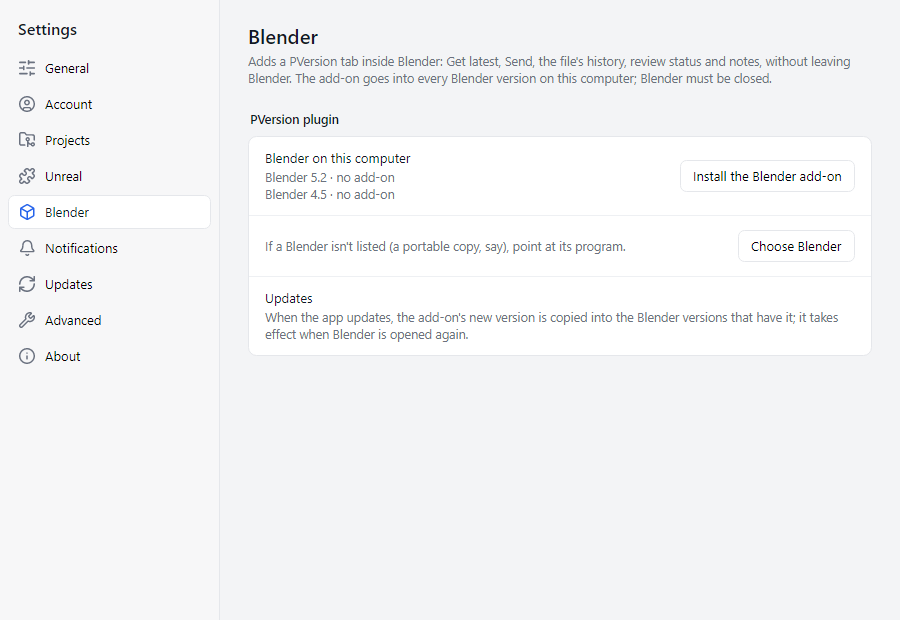
The add-on is installed into every Blender version on the computer and switched on. When the app updates, the add-on's new version is copied to the installed Blenders by itself; it takes effect when you reopen Blender.
The add-on shows in Turkish when Blender's interface language is Turkish, and in English otherwise.
The PVersion tab
In the 3D Viewport, press N to open the sidebar and switch to the PVersion tab. The File menu also has PVersion: Get latest and PVersion: Send.
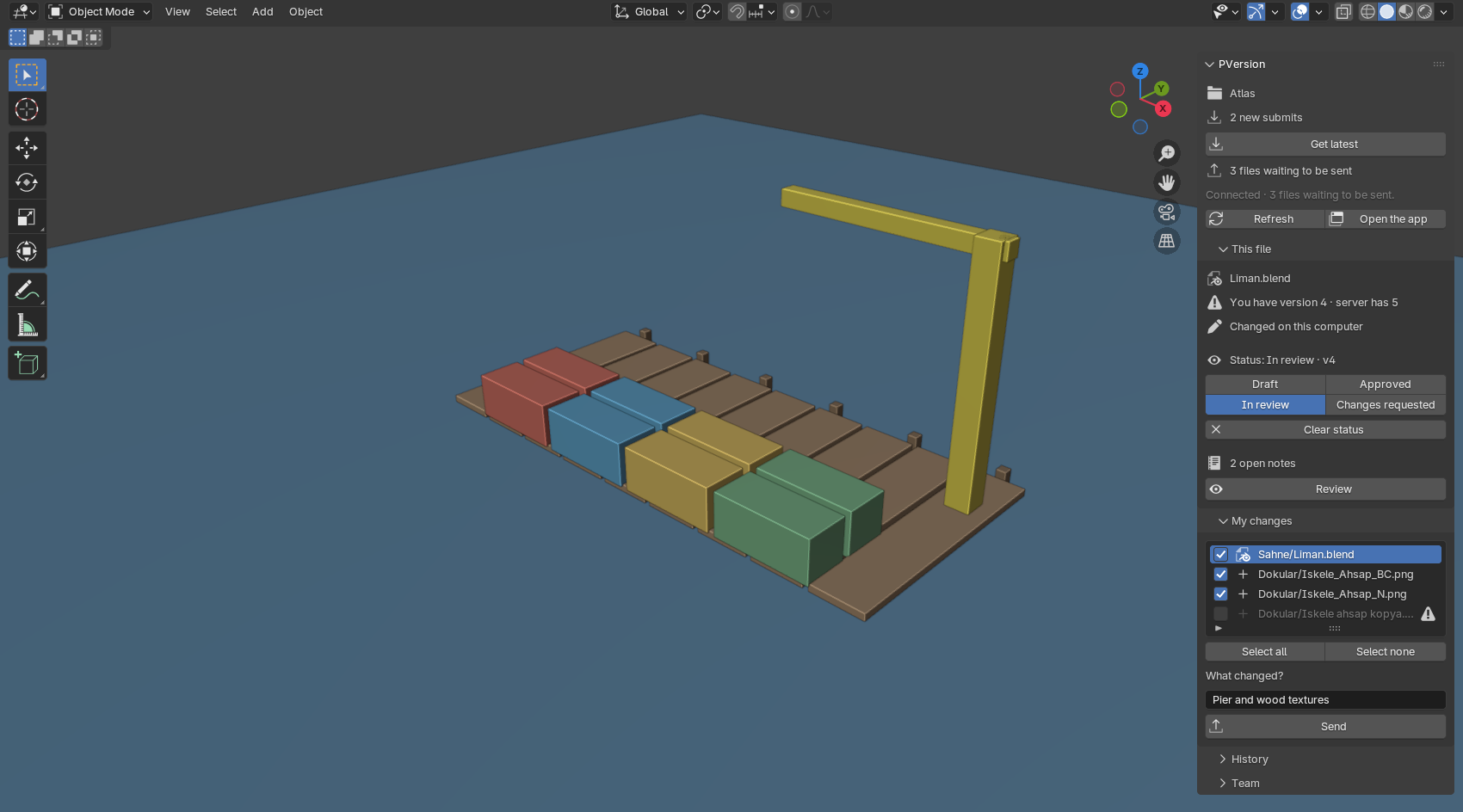
The tab shows the project the open .blend file belongs to. If the file is not saved yet, or is not in a PVersion project's folder, the tab tells you what to do. If the project is not the one picked in the app, click Switch to this project. If the app is not running, click Open the app.
The top section shows whether the project is up to date, how many new submits are on the server and how many of your files are waiting to be sent.
Getting latest
Get latest first looks at what is coming. If a new version of your open file is coming, it asks first, and warns that unsaved changes will be lost. If you go ahead, the file opens again as its new version. Linked .blend files and textures are reloaded in place. More in Getting latest.
Sending
The My changes section lists the files waiting to be sent.
- Tick the files you want to send (Select all, Select none).
- Write a sentence in the What changed? box. Nothing is sent without a description.
- Click Send. The open file is saved first.
Click a file that cannot be sent and the reason shows below the list. If some files cannot be part of the submit because of their names, you get a warning; to send anyway, click Send anyway (see File names).
This file: version, lock and review
The This file section shows where the open .blend file stands:
- Your version and the server's, and whether the file changed on this computer.
- Who has the file, if someone else has it open.
.blendfiles cannot be merged, so they open locked: you cannot send until that person does. More in Locks. - The review status: Draft, In review, Approved or Changes requested. Set it with the buttons; Clear status removes it.
- The number of open notes, and Review: the file opens in the app's review window, where you read the notes and leave notes on the picture (see Review and approval).
History and team
In the History section, click Show history: the file's latest versions are listed with who submitted them and their descriptions. Go back to this version opens the file again as that version; it stays on your computer until you send it as a new version.
The Team section shows whose app is open and the latest submits.
Files that are never sent
The backups Blender leaves when it saves (.blend1, .blend2…) do not go on the list to send and never reach the server; only your .blend file goes.
Ask the assistant on the site or write to [email protected].