 PVersion
Review and approval
Give a file's version a status of Draft, In review, Approved or Changes requested, and leave notes drawn on a picture or a video frame.
In PVersion the team keeps what it says about a file with the file itself. You give a version of a file a status, tags and a short note, and leave notes drawn right on the picture or the video frame. All of it stays tied to that version of the file, and everyone on the team sees it.
A file needs to have been submitted to the server at least once before it can get a status or notes.
Giving a status, tags and a note
On the Files page, click a file. The panel on the right has a REVIEW section.
- Pick a status: No status, Draft, In review, Approved or Changes requested.
- If you like, type tags separated by commas (for example
night, street, final). A file can have up to 10 tags. - If you like, write a short note: what should change, who should look.
- Click Save.
Under the box it says who saved last and when. Clear the status, the tags and the note and save, and the mark is removed.
A status always goes on the file's newest version. If a new version is submitted later, the old version's status keeps showing with its number (for example Approved · v5); the new version counts as having no status until someone marks it. The panel says so too: "Version 5: Approved (…). This version is not marked yet."
Quick approval from the tile
In grid view, when you point at a file or select it, two buttons appear in the bottom-left corner of its picture:
- Review (speech bubble): opens the review window.
- Approve (check mark): marks the file's newest version Approved with one click. Tags and a note on that version stay as they are; those on an older version do not carry over.
The buttons' names show when you point at them. If you approved by mistake, change the status in the file's panel. Approve does not appear when the newest version is already approved.
Seeing statuses on the Files page
- The status shows as a coloured label under the file's thumbnail; open notes show their count next to it.
- The In review, Changes requested and Approved buttons at the top of the page show only the files with that status.
- Words you type in the search box are matched against the tags you gave, too.
If you work in Blender you can give the status from inside Blender as well (see Blender).
The review window
In the file panel, click Review. The newest version of the file opens large in a window of its own, with the team's notes on the right.
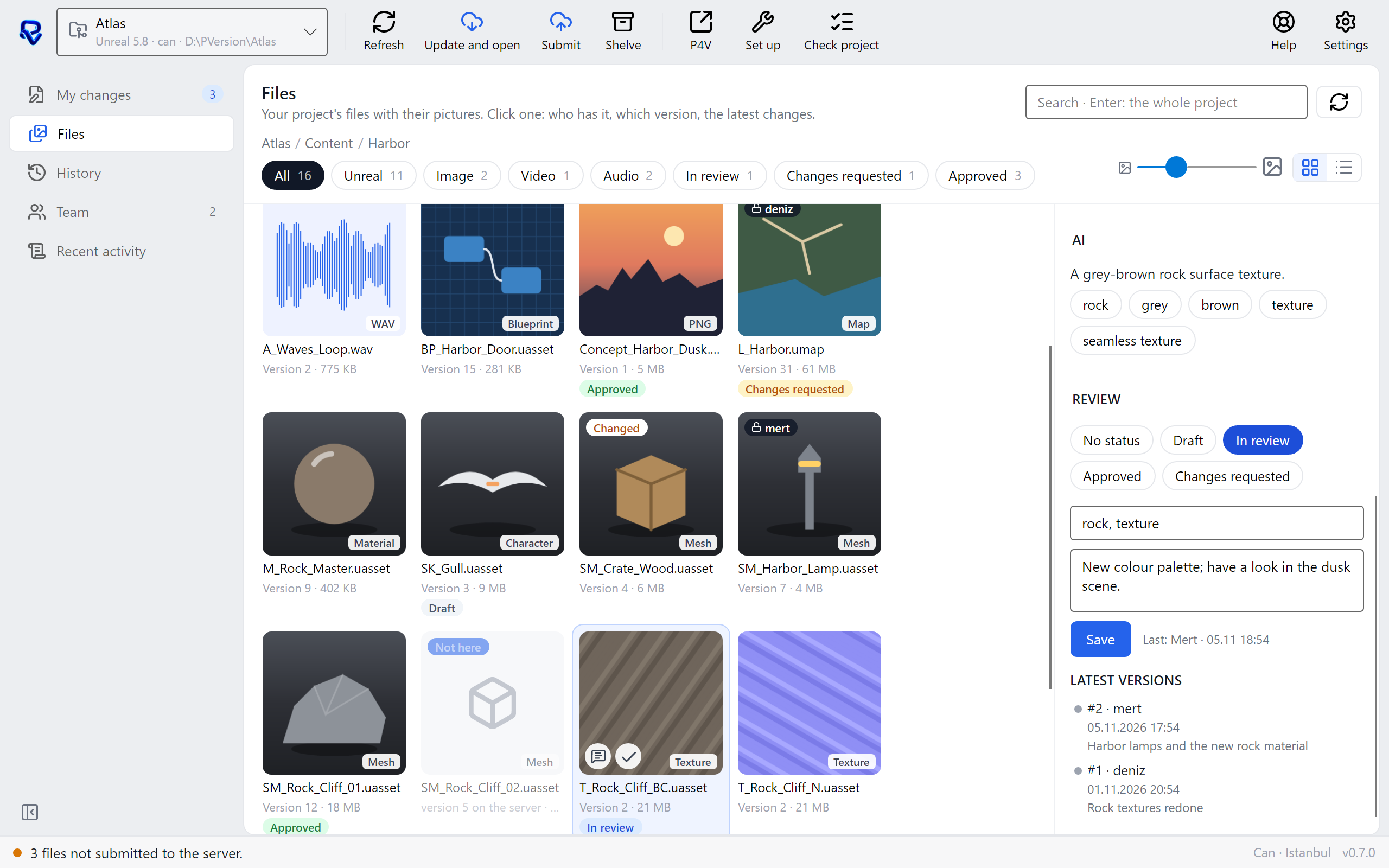
To leave a new note:
- Pick a tool at the top: Box (frames an area), Arrow (points at a spot) or Pen (a free line).
- Draw on the picture. Drawing is optional; you can write a note without one. To start over, click Clear drawing.
- Write your note in the box at the bottom right.
- Click Add note.
Notes are numbered; a note with a drawing shows its number on the picture, where you drew. Click a note in the list to select it.
The picture comes from your computer's copy when that copy is this version; otherwise, for images and Unreal assets, it comes from the server. Files without a picture (a sound file, for example) get notes without drawings.
Resolving notes
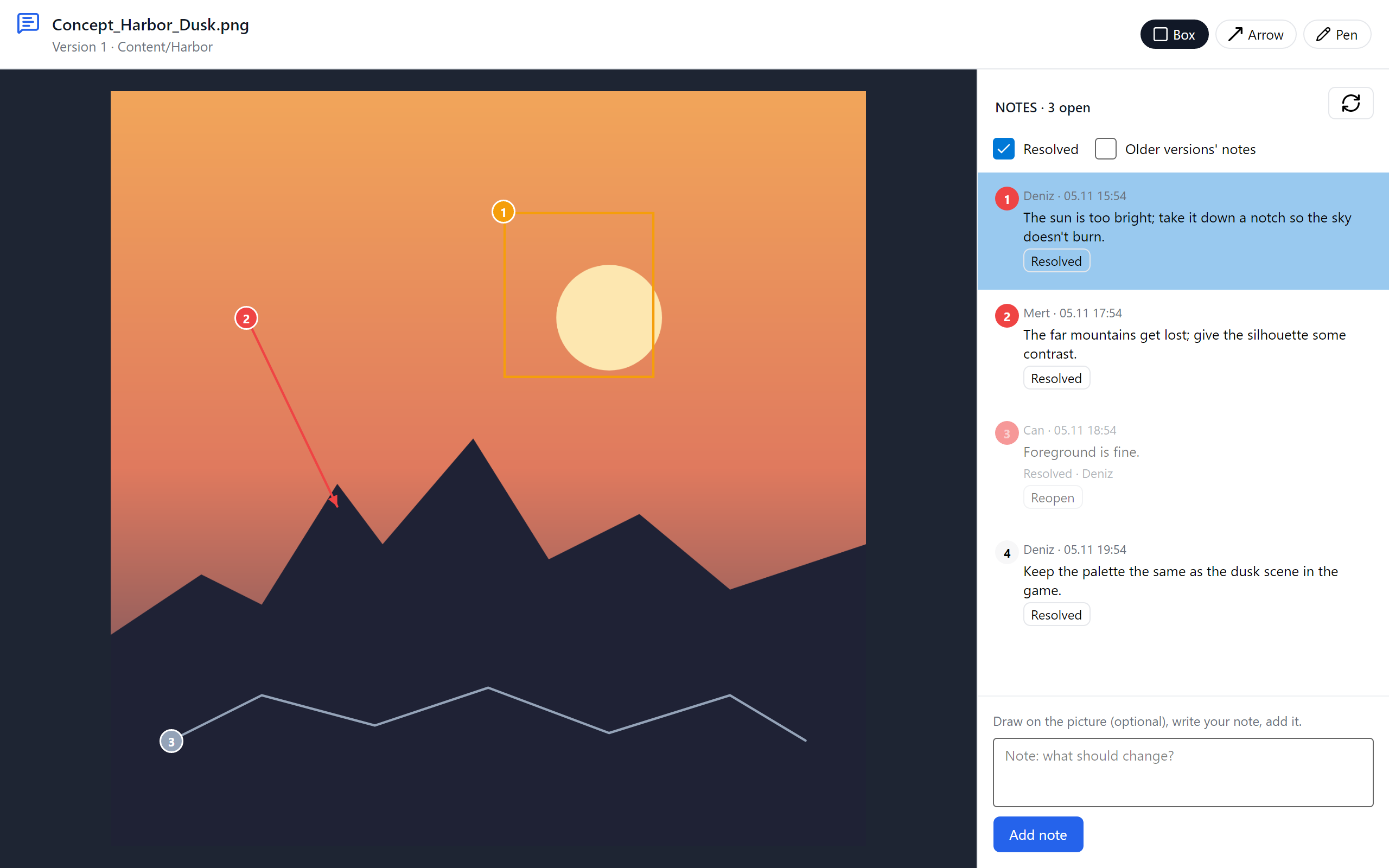
- When a note has been dealt with, click Resolved under it. The note fades and says who resolved it. Reopen opens it again if needed.
- The top of the list shows how many notes are open. Untick Resolved there to hide resolved notes.
- Tick Older versions' notes to list the notes left on earlier versions too, with their version numbers. Their drawings are not shown, since the picture has changed.
- You can Delete a note you wrote yourself. Notes are not edited; if something changes, write a new note.
The number of open notes also shows on the file's thumbnail and on the Review button.
Notes on video
For video files there is a time bar under the picture. Drag it and the frame at that moment shows; the buttons next to it step one second back and forward.
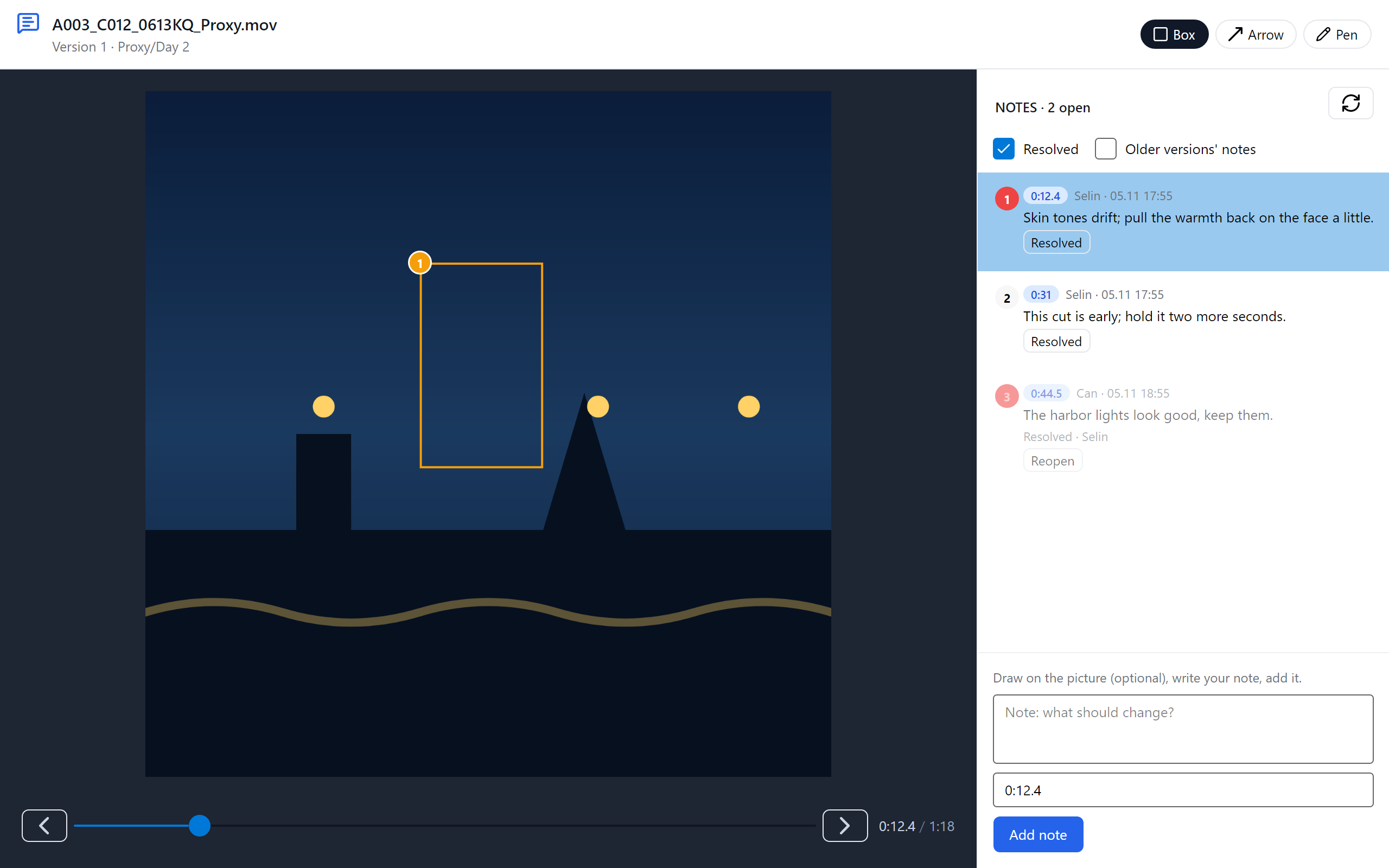
- A new note is written with the time the bar shows. You can also type the time yourself:
0:12or1:05.5. - Click a timed note and the video goes to that moment.
- Notes with drawings only show on the picture at their own moment.
- The video opens at the first open timed note.
Frames are read from the copy of the video on your computer. If this version is not on your computer, or the video cannot be played on it, no frames are shown; you can still write notes with their time.
For the rest of working on video projects, see Video teams.
Ask the assistant on the site or write to [email protected].